Bitcut for Interviewers: Cut a 60-Minute Interview into Highlight Clips
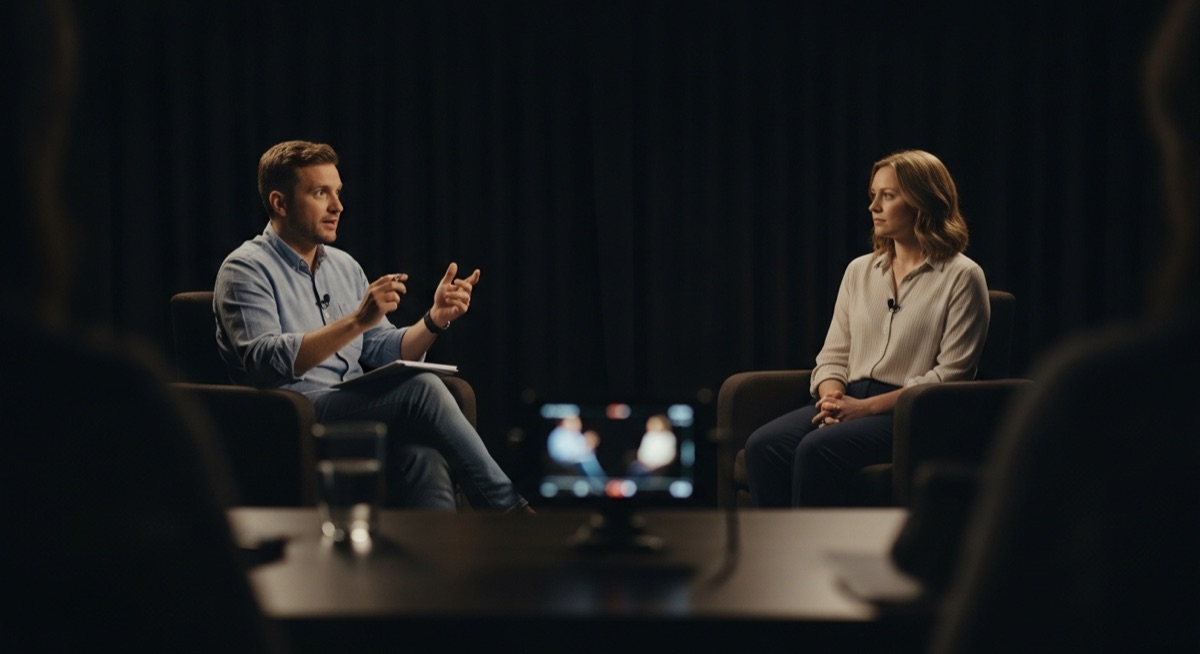
Interviews are goldmines of content, but nobody watches a 60-minute recording in full. The valuable moments — a candid answer, a surprising insight, a quotable line — are buried somewhere in the middle. Finding them, cutting them out, and reframing them for vertical video used to take hours.
Bitcut turns long interview recordings into highlight clips on your iPhone. AI finds the best answers, Face Tracking follows the active speaker, and you export vertical clips with subtitles — ready for Reels, Shorts, or TikTok.
Interview Editor: Topic Search, Face Tracking and Trimming
Generate Shorts
Feed Bitcut the full interview and AI analyzes the transcript to find segments that work as standalone clips. Each answer that tells a complete story or delivers a clear insight becomes its own project with subtitles attached.
Guide: Generate ShortsTopic Search
Looking for a specific answer? Type "the part about funding" or "when they talk about leadership" and Bitcut pulls exactly those moments from the transcript. After the first batch, tap Find More to search for different topics in the same recording.
Guide: Topic SearchFace Tracking
Interviews are typically filmed in 16:9. Shorts need 9:16. Face Tracking detects all faces in the frame, locks onto the active speaker, and creates a vertical crop that follows them. When the camera cuts between interviewer and interviewee, Bitcut detects the scene change and re-locks automatically.
Guide: Face TrackingSilence Removal
Interviews have natural pauses between questions, dead air during topic transitions, and gaps when someone is thinking. Silence Removal trims these automatically, making clips tighter without cutting any actual speech.
Guide: Silence RemovalSubtitles
Word-level subtitles are generated automatically from the transcription. Choose karaoke-style highlighting or full-line mode. Customize colors, fonts, and animation — or use the defaults that already look professional on every platform.
Guide: Subtitle StylesCloud Publish
Share interview clips with guests or your team via Bitcut Cloud. They preview in a browser — no app needed. Get approval before posting.
Guide: Cloud Publish
Step by Step: Interview to Highlights
Import the interview
Open Bitcut, create a new project, and pick your interview recording from camera roll, Files, or an external drive. Multi-camera setups work too — import each angle as a separate clip.
Generate Shorts with Topic Search
Tap Generate Shorts. Bitcut transcribes the audio and finds the strongest self-contained answers. To target specific topics, type a search prompt — for example, "find the answer about company culture" — and the AI extracts just those moments.
Face Track the active speaker
Open each clip and tap the Face Tracking button. Bitcut detects faces, identifies scene changes (camera switching between interviewer and interviewee), and creates a vertical crop locked onto the person on screen. No manual keyframing needed.
Remove dead air
Run Silence Removal to cut pauses between questions and thinking gaps. Adjust the threshold slider to keep conversational rhythm or go aggressive for a tighter edit.
Export and distribute
Export each highlight to camera roll or publish via Bitcut Cloud. Every clip is already vertical, subtitled, and speaker-tracked — ready for YouTube Shorts, Instagram Reels, TikTok, or LinkedIn.
Per Interview: 8-12 Clips, Speaker-Tracked and Subtitled
From a 60-minute interview, expect 8–12 highlight clips between 30 and 90 seconds. Each clip delivers one complete answer or insight and includes:
- Vertical 9:16 format with the active speaker centered in frame
- Burned-in subtitles for silent viewing on any feed
- Dead air removed — tight pacing without losing conversational flow
- Its own editable project — adjust timing, subtitles, or style at any time
Journalists, HR Teams, Podcast Hosts and Interviewers
- Journalists: Turn long-form interviews into shareable soundbites for social media and news feeds.
- HR teams: Clip candidate interviews or internal Q&A sessions into digestible segments for hiring committees or company intranets.
- Podcast hosts with guests: Extract the best guest moments from video podcasts and publish them as standalone clips across platforms.
- YouTube interviewers: Repurpose a single sit-down conversation into a week of Shorts content without touching a desktop editor.
Why Bitcut for Interviews
Frequently Asked Questions
Does Face Tracking know who is speaking?
Face Tracking detects all faces in the frame and locks onto the most prominent one per scene. When the camera cuts between interviewer and interviewee, Bitcut detects the scene change and re-locks to the person now on screen. For two-shot frames, it follows the larger or more centered face.
Can I search for a specific answer in a long interview?
Yes. After importing the video, use Topic Search to type what you are looking for — for example, "the part about company strategy" or "the question about hiring." Bitcut finds matching segments in the transcript and creates clips from them.
What if the interview has two people in one frame the whole time?
Face Tracking handles multi-face scenes. It identifies both faces, evaluates which one is more prominent (by size and position), and creates a vertical crop centered on that person. When the active speaker changes, you can re-analyze or manually adjust.
How does Silence Removal work without cutting the conversation?
Silence Removal only trims gaps where nobody is speaking — pauses between questions, dead air, and filler. It does not touch actual speech. You can adjust the sensitivity threshold to preserve natural conversational pauses if you prefer.
Can I process interviews recorded on an external camera?
Yes. Import from your camera roll, the Files app, or an external drive connected to your iPhone or iPad. Bitcut uses security-scoped bookmarks, so it reads directly from the drive without copying the entire file.