Bitcut for Educators: Turn Lectures into Micro-Lessons
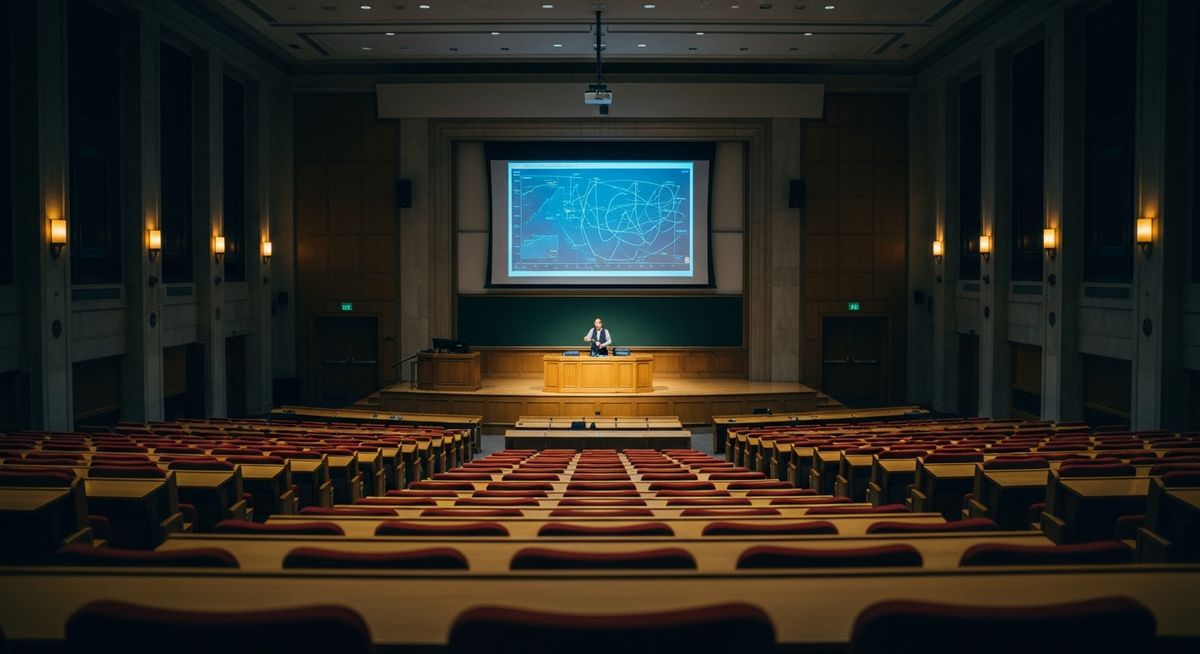
Students don't watch hour-long recordings. They scroll through short-form feeds. If your content is not there, they will find someone else's. The challenge is not recording — you already do that. The challenge is turning a full lecture into the 60-second clips that students actually watch and share.
Bitcut takes your existing lecture recordings and breaks them into focused micro-lessons with subtitles — ready for YouTube Shorts, TikTok, or Instagram Reels.
Lecture Editor: Generate Shorts, Silence Removal and Subs
Generate Shorts
AI analyzes your lecture transcript and identifies segments that work as standalone explanations. Each segment becomes its own project with subtitles already attached.
Guide: Generate ShortsTopic Search
Need the segment about photosynthesis or the explanation of quadratic equations? Type a search prompt and Bitcut finds exactly that part of the lecture. After the first batch, tap Find More to pull out additional topics from the same recording.
Guide: Topic SearchMulti-Language Subtitles
Subtitles are generated in your lecture's language, then translated to additional languages with word-level timing preserved. Reach international students without re-recording anything.
Guide: Subtitle StylesSilence Removal
Lectures have pauses, ums, and dead air. Silence Removal trims them automatically, making your micro-lessons tighter and more watchable without cutting any actual content.
Guide: Silence RemovalVoice Enhancement
Lecture rooms have echo. Zoom calls have compression. Voice Enhancement cleans up the audio: noise gate, EQ, compression — your voice sounds clear and professional in every clip.
Guide: Voice Enhancement
Step by Step: Lecture to Micro-Lessons
Import the lecture recording
Open Bitcut, create a new project, and pick your video from camera roll or Files. Zoom, Teams, and screen recordings all work.
Generate Shorts
The AI transcribes your lecture, identifies topic transitions, and proposes 8–12 segments that each explain one concept. Each segment gets a title and a quality score. You can optionally enter a search prompt — for example, "find the part about cell division" — to target specific topics in the recording.
Clean up the audio
Open each micro-lesson and apply Voice Enhancement (one tap). If there are long pauses, run Silence Removal to tighten the pacing.
Add translations (optional)
On Creator plan, enable additional languages in project settings. Bitcut generates translated subtitles with matched timing.
Export and distribute
Export to camera roll or share via Bitcut Cloud. Post to YouTube Shorts, TikTok, or embed in your LMS. Students can watch on any device.
Per Lecture: 8-12 Micro-Lessons with Burned-In Subtitles
From a 60-minute lecture, expect 8–12 micro-lessons between 45 and 120 seconds. Each clip covers one key concept and includes:
- Burned-in subtitles for silent viewing (80% of mobile video is watched muted)
- Clean audio with reduced echo and background noise
- Optional multi-language subtitles for international reach
- Standalone context — each clip makes sense without watching the full lecture
University Professors, Course Creators and Trainers
- University professors: Repurpose recorded lectures for student review and social media presence.
- Online course creators: Break long modules into snackable content for marketing funnels.
- Religious leaders: Turn sermons into shareable messages for your congregation.
- Corporate trainers: Convert training sessions into micro-learning clips for internal distribution.
Why Bitcut for Education
Frequently Asked Questions
Does Bitcut work with lecture recordings from Zoom or Teams?
Yes. Export the recording from Zoom or Teams, save it to your camera roll or Files app, and import it into Bitcut. You can also paste a direct URL if the video is hosted online.
Can I get subtitles in multiple languages?
On the Creator plan, Bitcut generates subtitles in your source language and then translates them to additional languages. Each language gets word-level timing automatically. Useful for international students or multilingual congregations.
What about slides or screen-sharing recordings?
Bitcut works best with talking-head footage where Face Tracking can reframe to vertical. For slide-heavy recordings, you can still use Generate Shorts for the audio segmentation and subtitles, but the vertical crop may be less relevant.
How long can the source video be?
There is no hard limit on video length. AI processing time depends on your plan: Free gives 30 minutes per month, Pro gives 300 minutes, Creator gives 1,000 minutes.
Can students find these clips via search?
When you publish Shorts to YouTube, TikTok, or Instagram, the burned-in subtitles make them indexable. Adding relevant titles and descriptions improves discoverability.