Best AI Video Editors for iPhone in 2026
Why AI Video Editing Matters
Video editing used to require hours of manual work — trimming clips, syncing audio, adding subtitles frame by frame. AI changes the equation. Modern editors can transcribe speech, detect beats, track faces, and find the best moments in your footage — all automatically.
But not all AI editors are created equal. Some focus on templates, others on automation, and a few on giving creators real editing power. Here's how the top iPhone options compare in 2026.
What to Look for in an AI Video Editor
Key Features to Evaluate
CapCut
CapCut remains the most popular free editor. Its auto-caption feature works well for English, and the template system makes it easy to create trending formats. The effects library is massive.
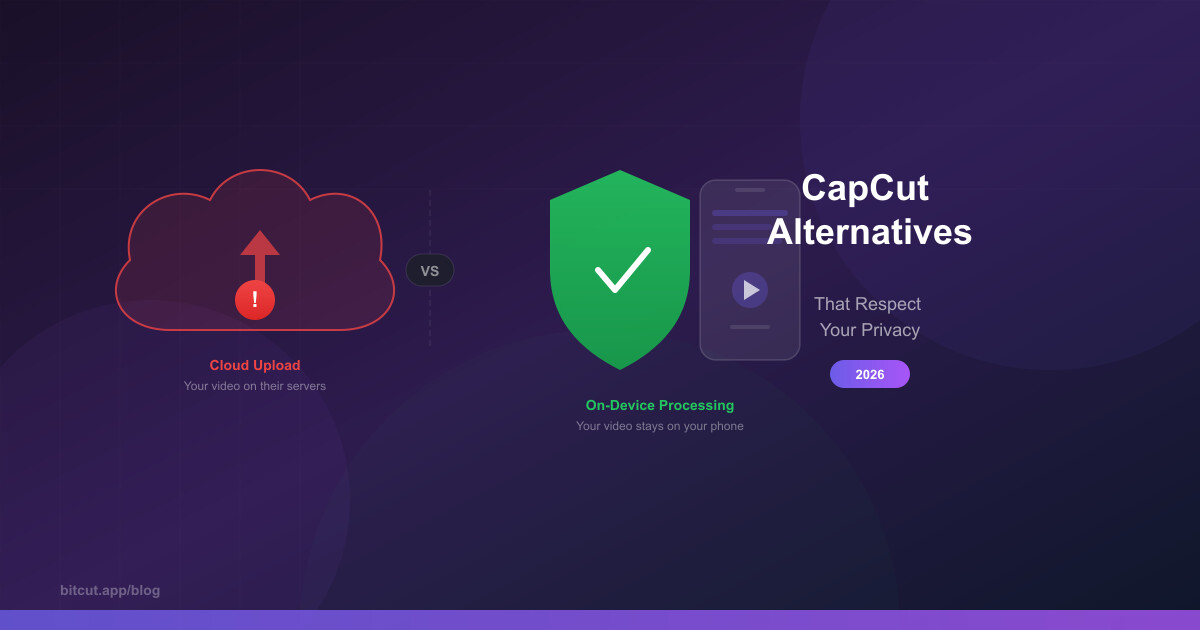
Limitations: AI features are template-driven — you pick a style, not a strategy. No intelligent segmentation for long videos. Beat sync is basic (on/off, no phase control). Face tracking exists but only for effects, not reframing. Owned by ByteDance, so all processing happens on their servers.
Opus Clip
Opus Clip pioneered the "paste a YouTube link, get clips" workflow. Good at finding viral moments using their engagement scoring algorithm. Web-based, works on any device.
Limitations: Web-only — no native iOS app with offline capabilities. Limited editing after clip generation. Subscription-heavy pricing ($19/mo for basic features). No beat sync or music integration. No manual timeline editing.
Bitcut
3 AI Workflows
Generate Shorts, Clips Enhancement, Smart Add — each for a different use case.
FFT Beat Sync
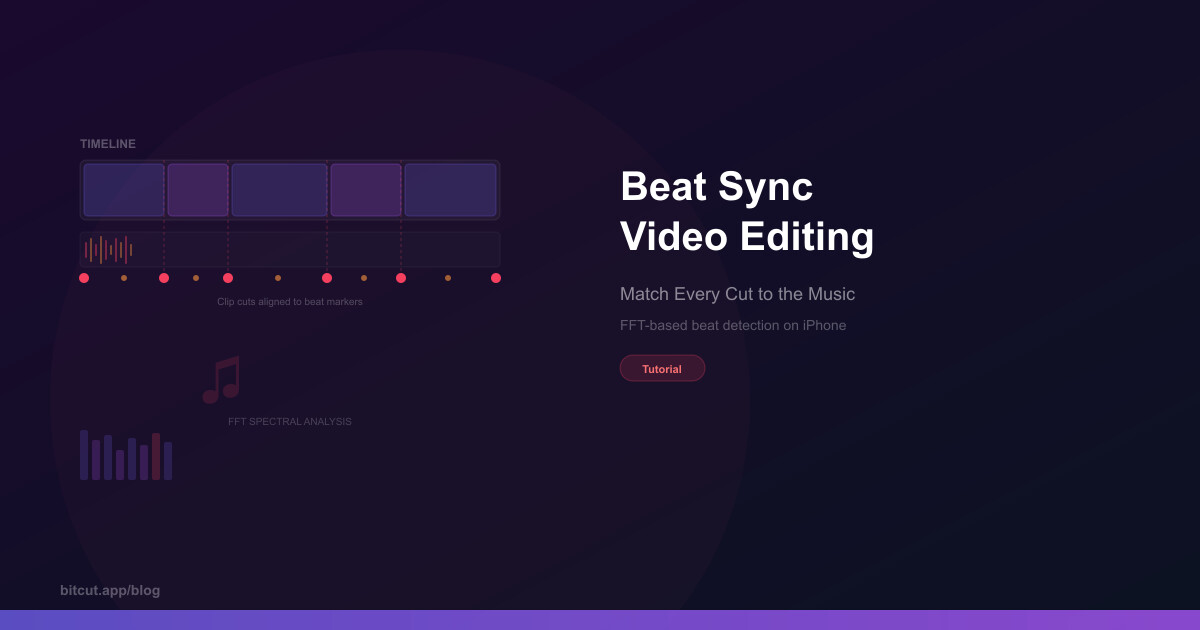
Real spectral analysis detects beats and aligns cuts. Phase control for fine-tuning.
Face Tracking Reframe
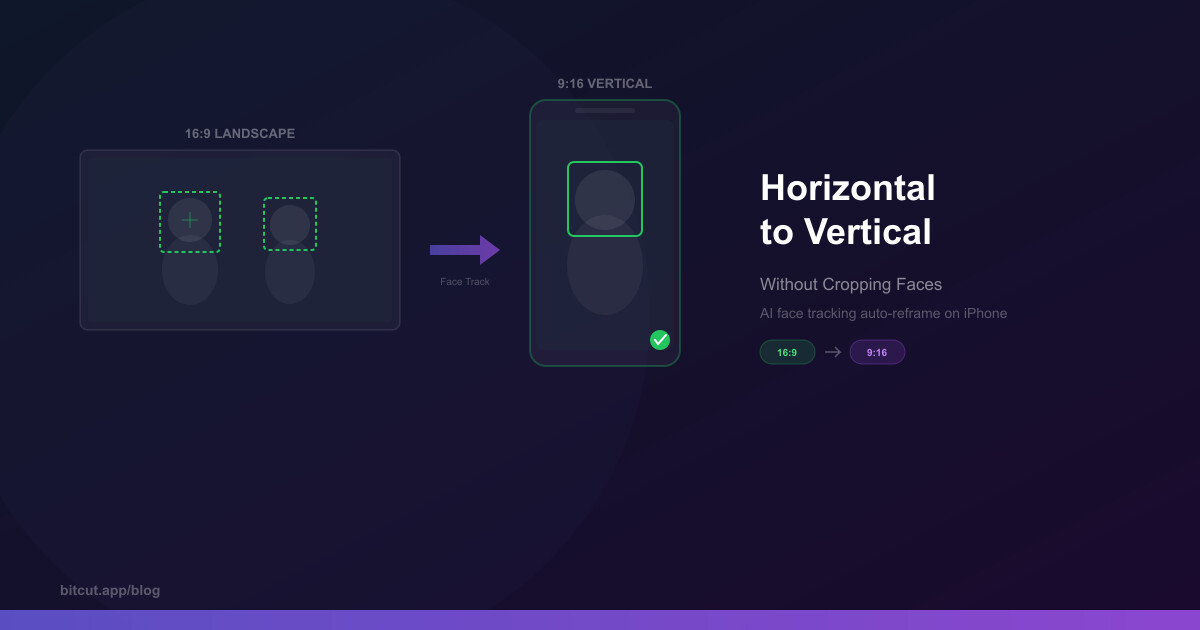
16:9 → 9:16 with spring physics camera. Scene change detection for clean cuts.
Karaoke Subtitles
Word-level highlighting with 7 animation presets. AI transcription with auto-correction.
Bitcut takes a different approach: it's a full timeline editor with AI capabilities, not just a clip generator. Free tier includes 30 minutes of AI processing per month with no watermark.
Limitations: iOS only (iPhone and iPad). Newer app, smaller community. No web interface.
VN Video Editor
Solid free editor with a clean timeline interface. Good basic editing tools, speed curves, and keyframe animations.
Limitations: Minimal AI features. No automatic transcription, no smart trimming, no face tracking. Beat sync requires manual marker placement. Subtitles are manual only.
Feature Comparison
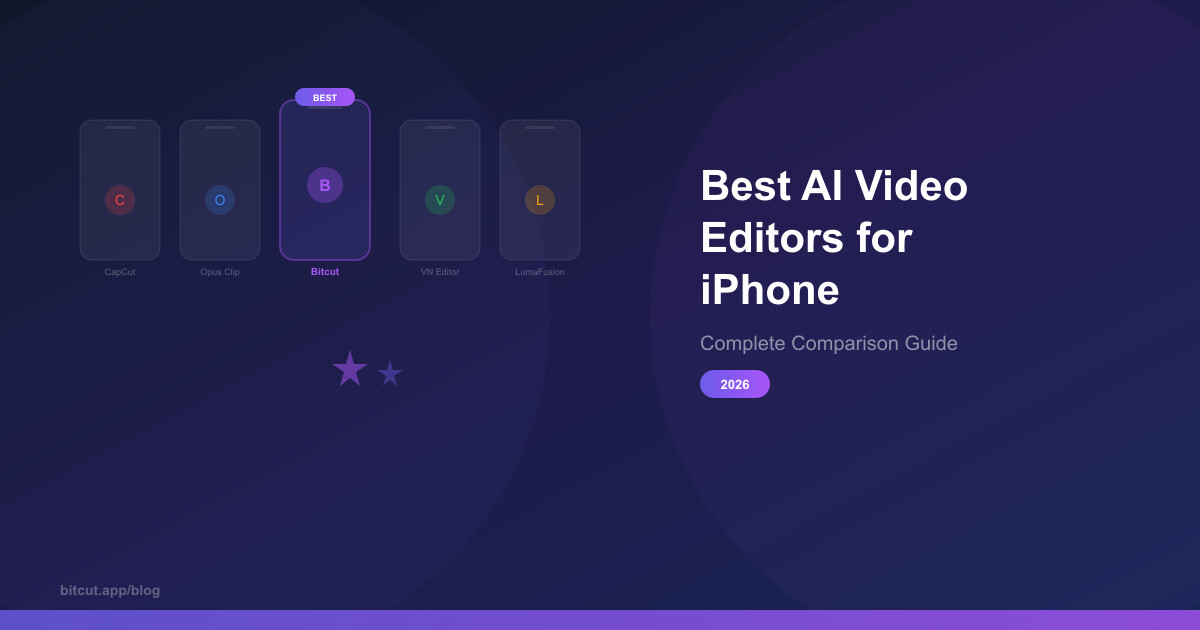
| Feature | CapCut | Opus Clip | Bitcut | VN |
|---|---|---|---|---|
| AI Segmentation | ✗ | ✓ | ✓ | ✗ |
| Auto Subtitles | ✓ Basic | ✓ AI | ✓ AI | ✗ |
| Face Tracking Reframe | ✗ Effects only | ● Basic | ✓ Spring physics | ✗ |
| Beat Sync | ● Basic | ✗ | ✓ FFT + phase | ✗ Manual |
| Privacy (On-device) | ✗ Cloud | ✗ Cloud | ✓ On-device | ✓ |
| Free (No watermark) | ● | ✗ 3 clips/mo | ✓ 30 min/mo | ✓ |
| Platform | iOS, Android, Web | Web only | iOS, iPad, Mac | iOS, Android |
Which One Should You Pick?
Our Recommendations
For quick templates and trends: CapCut is hard to beat — it's free and has the biggest effect library. Just know your footage goes to ByteDance servers.
For automated clip generation from long videos: Opus Clip if you're on desktop, Bitcut if you're on iPhone.
For creators who want control + AI + privacy: Bitcut gives you a full timeline editor with AI that handles the tedious parts (transcription, trimming, reframing) while keeping footage on your device.
For pure manual editing on a budget: VN Editor — free, no watermark, solid tools.