How to Add Subtitles to Reels Automatically
Why Every Reel Needs Subtitles
Subtitles aren't optional anymore — they're the difference between someone scrolling past and stopping to watch. But typing out subtitles manually? That's painful. Here's how to do it in under 2 minutes with AI.
Automatic Subtitles with AI Transcription
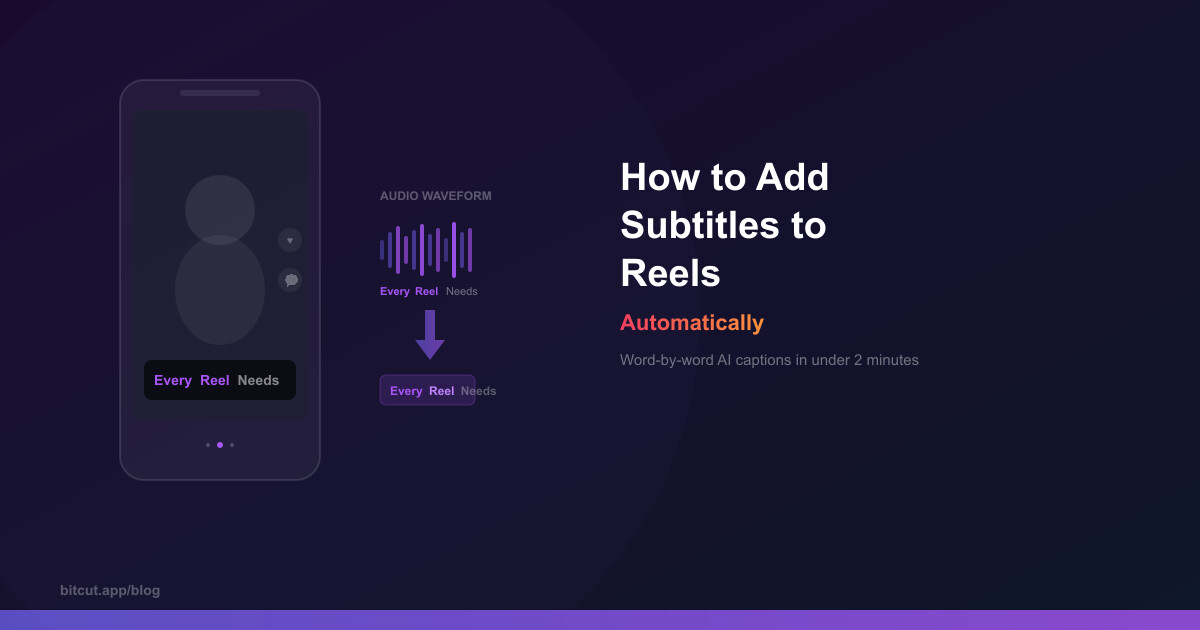
Modern AI transcription can convert speech to text with word-level timestamps — meaning each word is tagged with the exact moment it's spoken. This enables karaoke-style subtitles where words highlight as they're said.
How It Works in Bitcut
Import your clip
Add your video to the timeline from Photos or the Files app.
Tap Enhance
Bitcut detects speech locally, then sends just the audio to the server for AI transcription.
Get word-level subtitles
Each word comes back with precise start/end timestamps — accurate to ~50ms.
Auto-correction
AI fixes transcription errors, adds proper punctuation and capitalization automatically.
Choosing a Subtitle Style
Default subtitles are boring. The style of your captions affects readability and brand identity. Key options:
Display Modes
- Karaoke — Words highlight one by one as they're spoken. High engagement, great for talking-head content
- Full line — Entire phrases appear and disappear together. Cleaner look, better for fast speech
Animation Presets
Pop
Words scale up on appearance. Energetic, works for lifestyle content.
Fade
Smooth opacity transition. Professional, works for everything.
Bounce
Spring-style entrance. Fun, works for entertainment.
Typewriter
Words reveal character by character. Dramatic, for storytelling.
Wave
Subtle vertical wave across words. Unique, attention-grabbing.
Background Types
- Gradient — Semi-transparent gradient behind text. Modern, doesn't obscure video
- Plate — Solid colored background per word. Bold, maximum readability
- None — Text with stroke/shadow only. Minimal, lets video dominate
Position and Size
Subtitle position matters more than you think:
- Bottom (default) — Standard position, works for most content. Keep above the platform UI (like/comment buttons)
- Top — Use when the action is in the lower half of the frame
- Custom — Drag on the preview to place subtitles exactly where you want them
Font size adjusts with pinch-to-resize directly on the preview. Bitcut automatically scales for export resolution.
Editing Subtitles in Bulk
AI transcription isn't perfect — names, slang, and technical terms sometimes need correction. Bitcut's bulk editor lets you edit all subtitle text at once without touching timestamps. Fix a word, and the timing stays perfectly synced.
Export for Each Platform
Subtitles are burned into the video on export — no separate SRT file needed. This means they look exactly the same on every platform, every device. Choose your resolution and quality preset:
- Standard — Full quality, larger file
- Web Light — 720p HEVC at 2 Mbps, about 15 MB per minute. Fast uploads, looks great on mobile screens
Quick Tips
- Use a contrasting stroke color (dark stroke on light text) for readability on any background
- 2-3 words per line works best for vertical video — more words per line means smaller text
- Test your subtitles on a phone screen before posting — what looks good on a laptop may be too small on mobile
- For multi-language audiences, Bitcut can generate subtitles in the original language — no manual translation needed