Beat Sync Video Editing: How to Match Every Cut to the Music
What Is Beat Sync Video Editing?
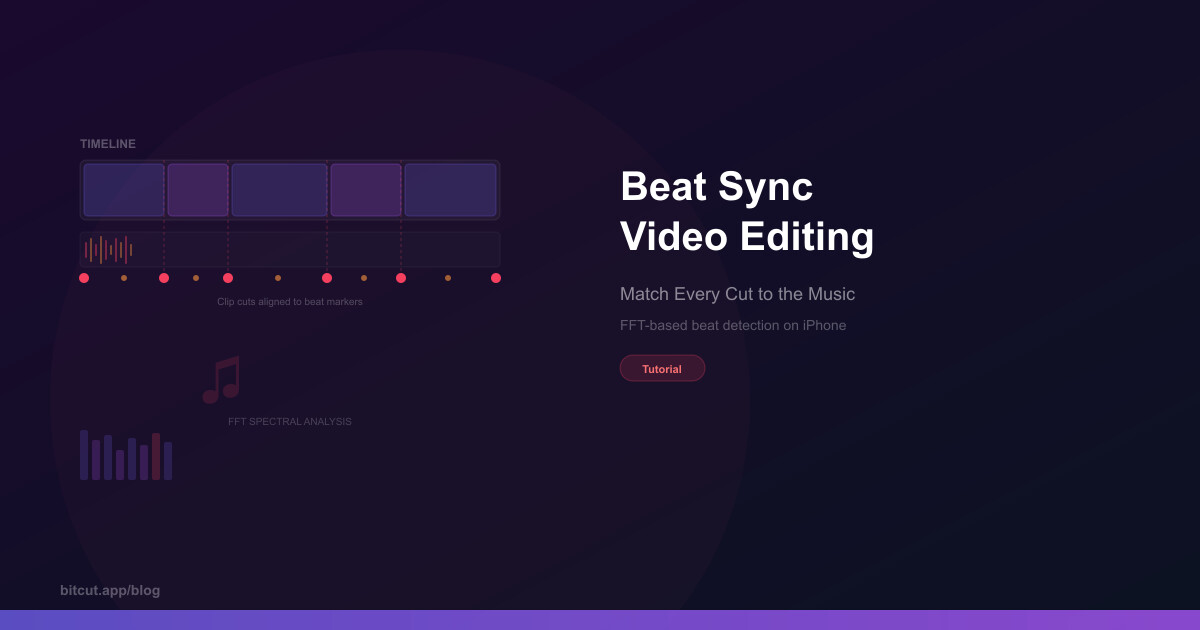
Beat sync video editing is the practice of aligning your cuts, transitions, and visual changes to the beats of a music track. When a clip change lands exactly on a drum hit or bass drop, the video feels intentional and rhythmic. When it doesn't, the edit feels random — even if the individual shots are great.
This technique has been a staple of professional music videos and trailers for decades. What's changed is that AI and signal processing can now detect those beats automatically, eliminating the tedious work of marking every hit by ear.
The reason is neurological. Our brains are wired to detect rhythmic patterns. When visual changes align with auditory beats, the brain processes both streams as a single coherent experience rather than two competing inputs. The result: viewers stay locked in and feel the edit rather than just watching it.
The Science: How Beat Detection Actually Works
Most video editors that claim "beat sync" just let you tap the screen to place markers. That's manual rhythm matching, and it's only as accurate as your reflexes (spoiler: human reaction time is about 200 milliseconds, which is enough to feel off-beat).
True automatic beat detection uses a technique from audio engineering called FFT spectral analysis — the same math that powers music visualizers, Shazam, and studio mixing software. Here's how it works in plain terms:
1. Sample the Audio
The music track is broken into tiny overlapping windows (about 46ms each). Each window captures a snapshot of what frequencies are present at that instant.
2. FFT Transform
A Fast Fourier Transform converts each audio window from a waveform into a frequency spectrum — showing how much energy is at each pitch, from bass to treble.
3. Spectral Flux
The algorithm compares consecutive spectrums. A sudden spike in energy (like a drum hit or bass note) creates a burst of "spectral flux" — that's a beat onset.
4. Peak Detection
Adaptive thresholds filter out noise and find the real peaks. Each peak becomes a beat marker on your timeline, positioned with sub-frame accuracy.
The result is a set of beat markers placed directly on your timeline, each tagged with a strength value. Strong beats (kick drums, bass drops) get large markers. Medium beats (snares, chord changes) get mid-size markers. Subtle beats (hi-hats, off-beat accents) get small markers. This hierarchy lets you decide whether to cut on every beat, every strong beat, or only on the biggest hits.
Manual vs. Automatic Beat Sync
There are three approaches to syncing video to music, and the differences matter more than you'd think:
Manual Tap Markers
Most mobile editors (CapCut, VN, InShot) offer a "tap to mark" feature: you play the music and tap the screen on each beat. The app places a marker wherever you tapped. This works, but it has serious limitations:
- Human reaction time adds 100-250ms delay to every marker
- You can't mark beats faster than ~4 per second (120 BPM) reliably
- No strength classification — every marker is equal
- You need to re-mark if you change the music track
- Tedious for songs with complex rhythms or tempo changes
Waveform-Based Snapping
Desktop editors like Premiere Pro and Final Cut show audio waveforms, and you can visually align cuts to the spikes. This is more accurate than tapping but still manual. You're looking at the waveform and dragging clips by hand. Better results, but it takes time — especially for a 3-minute edit with 50+ cuts.
FFT Auto-Detection
True automatic beat sync uses FFT analysis to place markers algorithmically. No tapping, no visual alignment — the algorithm finds every beat in the track and classifies it by strength. You add your music, and beat markers appear on the timeline instantly. This is the approach used in Bitcut.
How to Beat-Sync Your Video in Bitcut
Import your video clips
Open Bitcut, create a new project, and add your video clips to the timeline. You can import from your photo library, Files app, or even an external drive. Arrange the clips in your desired order.
Add a music track
Tap the music icon and select a track from your library. The music appears as a separate audio layer beneath your video clips. You can trim and position it to start at the right moment.
Auto-detect beats
Bitcut runs FFT spectral analysis on the music track and places beat markers across the timeline. This happens in seconds, even for long tracks. You'll see colored dots on the timeline: red for downbeats, orange for regular beats, yellow for off-beats — sized by strength.
Adjust phase offset
Play back your edit and listen. If the cuts feel slightly late or early relative to the beat, use the phase offset control to shift the entire beat grid. Small adjustments (10-30ms) can make the difference between "close enough" and "perfectly locked."
Snap clips to beats
Drag clip edges and they'll magnetically snap to the nearest beat marker. Extend a clip to the next downbeat, trim a transition to land right on the snare. The beat grid acts as a ruler for rhythm.
Preview and export
Play through your edit to feel the sync. Adjust any clips that don't sit right. When you're happy, export at your preferred quality. The beat-synced timing is baked into the final video.
Beat Sync Feature Comparison
How do popular mobile video editors compare on beat sync capabilities?
| Feature | Bitcut | CapCut | Premiere Rush | VN Editor |
|---|---|---|---|---|
| Auto beat detection | ✓ FFT | ✗ Manual | ✗ | ✗ Manual |
| Beat strength classification | ✓ 3 tiers | ✗ | ✗ | ✗ |
| Phase offset control | ✓ | ✗ | ✗ | ✗ |
| Snap-to-beat editing | ✓ | ● Basic | ✗ | ● Basic |
| Visual beat markers on timeline | ✓ Sized | ● Uniform | ✗ | ● Uniform |
| Works with variable tempo | ✓ | ✗ | ✗ | ✗ |
| On-device processing | ✓ | ✓ | ✓ | ✓ |
| Price | Free / $9.99/mo | Free / $7.99/mo | $9.99/mo | Free |
Creative Beat Sync Techniques
Once you have beat markers on your timeline, the creative possibilities go beyond simple cut-on-beat editing. Here are techniques used by professional editors that you can apply on mobile:
Montage Cutting
The classic music video technique: cut to a new shot on every strong beat. Works best with 4-8 second clips and high-energy music. The key is variety — alternate between wide shots, close-ups, and detail shots so each beat reveals something new. With FFT detection, you can see exactly where the downbeats fall and place your strongest shots there.
Transition Timing
Instead of hard cuts on every beat, use the beat markers to time transitions. Start a cross-dissolve two beats before the chorus and complete it on the downbeat. Or use a whip-pan transition that lands on a snare hit. The beat grid gives you precise anchor points for timing these moves.
Intensity Matching
Match your clip energy to beat strength. Put your most dynamic footage (action shots, fast movement, close-ups) on the strongest beats. Reserve static or slow-motion shots for quieter sections. The three-tier strength classification in Bitcut makes this intuitive — the bigger the beat marker, the bigger the visual moment should be.
Anticipation Cuts
A technique borrowed from film scoring: place your cut 1-2 frames before the beat. This creates a sense of anticipation — the viewer sees the new shot and then hears the beat, which makes the impact feel stronger. Use the phase offset slider to shift your entire beat grid slightly earlier to achieve this effect globally.
Using Silence
Not every beat needs a cut. Some of the most powerful moments in a music-driven edit come from holding a single shot across multiple beats, then cutting right on a big downbeat after a build-up or silence. Let the beat markers show you where the structural moments are, and be strategic about which ones you use.
Frequently Asked Questions
Yes. FFT spectral analysis detects acoustic transients regardless of genre. It works with hip-hop, EDM, rock, pop, classical, lo-fi, and ambient music. Songs with clear percussion (drums, claps, bass hits) produce the most distinct markers, but the algorithm also detects melodic onsets like chord changes and vocal attacks. Even music with variable tempo (like live recordings or gradual accelerandos) works correctly because the detection is onset-based, not grid-based.
The auto-detected beats serve as a snap grid on the timeline. You can adjust the phase offset to shift the entire grid, and you choose which beats to snap to when editing — you're never forced to cut on every beat. The strength-based sizing helps you decide: snap to large markers for a relaxed cut rhythm, or snap to every marker for a rapid montage.
No. Beat detection runs entirely on your device using Apple's Accelerate framework for FFT processing. No audio is uploaded anywhere. The analysis typically completes in 2-3 seconds even for a 5-minute track. This also means it works in airplane mode, on the subway, or anywhere without a connection.
A BPM grid estimates the song's tempo (say, 120 BPM) and places evenly spaced markers every 500ms. This works for perfectly quantized electronic music but fails with live recordings, tempo changes, or complex rhythms. Onset detection (what Bitcut uses) finds each individual beat based on the actual audio signal. Every marker corresponds to a real acoustic event, so it handles variable-tempo music, odd time signatures, and syncopation accurately.
Some apps offer "auto-edit" where the app automatically cuts and arranges your clips to music. That's a template-driven approach — you hand over creative control. Beat sync in Bitcut is a tool, not an auto-pilot. It gives you a precise rhythmic grid on the timeline and lets you decide where to cut, which beats to use, and how to time your transitions. You stay in control of the edit; the algorithm just gives you perfect timing markers to work with.
Why Beat Sync Is a Competitive Edge
Every creator on Instagram Reels, TikTok, and YouTube Shorts is competing for the same 1-3 seconds of attention. Music-driven editing is one of the most reliable ways to hold that attention — viewers unconsciously expect visual rhythm when they hear music, and they disengage when the visuals feel disconnected from the audio.
The problem has always been effort. Professional editors spend hours aligning cuts to waveforms in Premiere or Final Cut. Mobile editors make you tap out beats by hand, introducing human error. FFT-based auto-detection eliminates both problems: you get frame-accurate beat markers in seconds, on your phone, with no manual work.
That's not a small advantage. It's the difference between spending 45 minutes on beat alignment and spending zero minutes — while getting more accurate results.