Bitcut for Podcasters: Turn Episodes into Social Clips with Subtitles
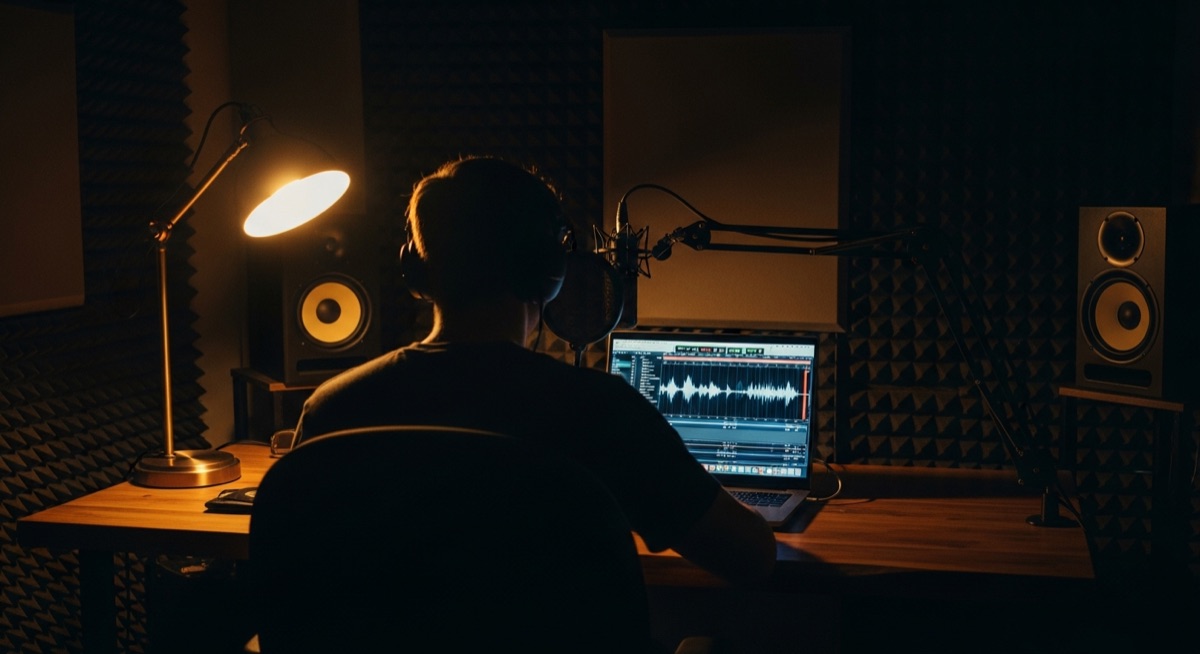
You record a podcast every week. The conversation is full of moments that would perform well on social media — a sharp take, a funny story, a practical tip. But those moments are buried inside a 45-minute episode that most people will never listen to in full.
Bitcut finds those moments for you. Import your episode, let AI identify the strongest segments, and get short clips with subtitles — ready for Reels, Shorts, and TikTok.
Podcast Clip Editor: Generate Shorts and Karaoke Subtitles
Generate Shorts
Import your full episode and tap Generate Shorts. AI transcribes the conversation, finds segments that stand on their own, and creates individual clip projects — each with subtitles and a quality score based on hook strength and coherence.
Guide: Generate ShortsTopic Search
Your guest talked about productivity for three minutes and the rest was small talk. Type "find the part about productivity" and Bitcut extracts just that segment. After the first batch, tap Find More to search for other topics in the same episode.
Guide: Topic SearchVoice Enhancement
Not every podcast is recorded in a treated studio. Voice Enhancement cleans up room echo, reduces background noise, and evens out volume differences between host and guest. One tap, three intensity presets.
Guide: Voice EnhancementKaraoke Subtitles
Word-by-word highlighting that follows the speaker in real time. Customize fonts, colors, background style, and animation presets. Burned into the export — no platform subtitle support needed.
Guide: Subtitle StylesSilence Removal
Podcasts have natural pauses, long breaths, and dead air between questions. Silence Removal trims them automatically, tightening each clip to keep viewers watching without cutting any spoken content.
Guide: Silence RemovalAI Descriptions
Generate platform-specific descriptions with hooks and hashtags. Choose between YouTube, Instagram, TikTok, or LinkedIn optimization for each clip.
Guide: AI Descriptions
Step by Step: Episode to Social Clips
Import your episode
Open Bitcut, tap New Project, and pick your video podcast recording from the camera roll or Files app. If the episode is hosted online, paste the URL directly.
Generate Shorts (with optional topic search)
Tap Generate Shorts. AI transcribes the entire episode, then identifies segments that work as standalone clips. You can optionally type a search prompt — for example, "find the part about hiring mistakes" — to guide the AI toward a specific topic. You will see a list of proposed clips with titles and quality scores.
Enhance the audio
Open each clip and apply Voice Enhancement to clean up the recording. If there are long pauses or hesitations, run Silence Removal to tighten the pacing.
Style the subtitles
Choose karaoke mode for word-by-word highlighting or full-line mode for a cleaner look. Pick a color scheme that matches your podcast branding. Adjust font size, position, and animation preset.
Export and post
Export each clip to your camera roll or share via Bitcut Cloud. Subtitles are burned into the video — they work on every platform without depending on auto-captions.
Per Episode: 6-10 Clips with Clean Audio and Subtitles
From a 45-minute podcast episode, you can expect 6–10 clips between 30 and 90 seconds each. Every clip has:
- Burned-in subtitles with karaoke or full-line styling
- Clean, enhanced audio — even from imperfect recording conditions
- Tight pacing with pauses and dead air removed
- Standalone context — each clip makes sense without hearing the full episode
The entire process takes about 10 minutes of active work. Most of that is reviewing the AI suggestions and choosing your subtitle style.
Who This Works For
- Solo podcasters: Turn your monologue episodes into quote-style clips that promote the full show on social media.
- Interview shows: Pull the best guest answers and turn them into shareable clips. Topic Search finds specific moments without manual scrubbing.
- Educational podcasts: Extract the key takeaway from each segment and create micro-lessons with subtitles for silent viewing.
- News and commentary: Clip your strongest opinions and hot takes. Karaoke subtitles add emphasis that keeps viewers watching.
The Key Differentiator: Topic Search
Most clipping tools just chop an episode into segments by duration or silence gaps. Bitcut understands what was said. With Topic Search, you type a natural-language query — "find the part about productivity" or "the story about the failed product launch" — and the AI searches the transcript for exactly that moment.
After pulling the first set of clips, tap Find More to search for additional topics in the same episode. No re-uploading, no re-processing. The transcript is already analyzed — each new search takes seconds.
This means you can mine a single episode for clips across multiple themes, posting them over days or weeks to different audiences.
Why Bitcut for Podcasters
Frequently Asked Questions
Does Bitcut work with audio-only podcast files?
Bitcut is a video editor, so it needs a video file. If you record video alongside your podcast (even a simple webcam), that works perfectly. For audio-only episodes, pair the audio with a static image or waveform visual in another tool first, then import the result.
How does Topic Search help with podcast episodes?
Type a phrase like "find the part about morning routines" and Bitcut searches the transcript for that topic. It pulls out just the relevant segment as a standalone clip. After the first result, tap Find More to search for additional topics in the same episode.
Can I use karaoke-style subtitles on my clips?
Yes. Bitcut supports word-by-word karaoke highlighting where each word lights up as it is spoken. You can also use full-line mode if you prefer a cleaner look. Both modes are fully customizable.
What does Voice Enhancement do for podcast audio?
Voice Enhancement applies a noise gate, equalization, and compression to clean up your audio. It reduces background noise, evens out volume differences between speakers, and adds clarity. One tap, three intensity levels.
Is there a limit on episode length?
There is no hard limit on video length. AI processing time counts against your plan: Free gives 30 minutes per month, Pro gives 300 minutes, Creator gives 1,000 minutes. A typical 45-minute episode uses 45 minutes of quota.