How to Create YouTube Shorts from Long Videos on iPhone
Long Videos Are Losing. Shorts Are Winning.
The numbers are hard to argue with. YouTube Shorts now get 70 billion daily views, and short-form content consistently outperforms long-form across every platform. Creators who repurpose their long videos into Shorts see more subscribers, more watch time, and better algorithmic reach than those who post long-form alone.
The problem isn't strategy — most creators know they should be making Shorts. The problem is time. Manually scrubbing through a 30-minute video to find the best 60-second moments, adding subtitles, and reframing for vertical takes hours. Per video.
This guide covers three methods to create YouTube Shorts from long videos on your iPhone — from fully manual to fully AI-powered — so you can pick the approach that fits your workflow and budget.
Method 1: Manual Editing (Free, Slow)
The traditional approach: watch your long video, note timestamps of interesting moments, then use a video editor to cut and export each clip individually.
Tools for manual cutting
Any timeline-based video editor works — iMovie, VN Editor, InShot, or even the Photos app's built-in trim tool. The process is the same everywhere:
- Watch the full video and write down timestamps of strong moments
- Import the video into an editor
- Trim to the specific segment (typically 15-60 seconds)
- Crop or reframe from 16:9 to 9:16 for vertical
- Add subtitles manually (typing word by word)
- Export and repeat for each clip
Best for: Creators who need precise control over every frame, have plenty of editing time, or are working with just one or two clips. Also the only option that costs nothing beyond the free editor itself.
Method 2: Web-Based AI Tools (Fast, Privacy Trade-offs)
A wave of browser-based tools now offer "paste a link, get clips" workflows. You provide a YouTube URL or upload a video file, and the tool uses AI to find the best moments, add subtitles, and generate vertical clips.
Popular web-based options
Opus Clip is the most well-known. Paste a YouTube link, choose a target clip length, and it generates multiple Shorts ranked by a "virality score." Subtitles are added automatically. The free tier gives you about 3 clips per month, with paid plans starting at $19/month.
Klap follows a similar model — paste a link, get clips. It focuses on speaker-focused content and does decent face tracking. Plans start around $29/month for meaningful usage.
Vizard takes a more editing-focused approach, giving you a browser-based timeline to adjust the AI-generated clips before exporting. Pricing starts at $24/month.
Best for: Desktop-first creators who produce talking-head content (interviews, podcasts, lectures) and want the fastest possible turnaround. Works well if privacy isn't a primary concern.
Method 3: Native AI on iPhone (Fast, Private)
The newest category: native iOS apps that run AI analysis on your device (or on a private server for transcription) without uploading your video to third-party cloud platforms. This combines the speed of web tools with the privacy and control of native editing.
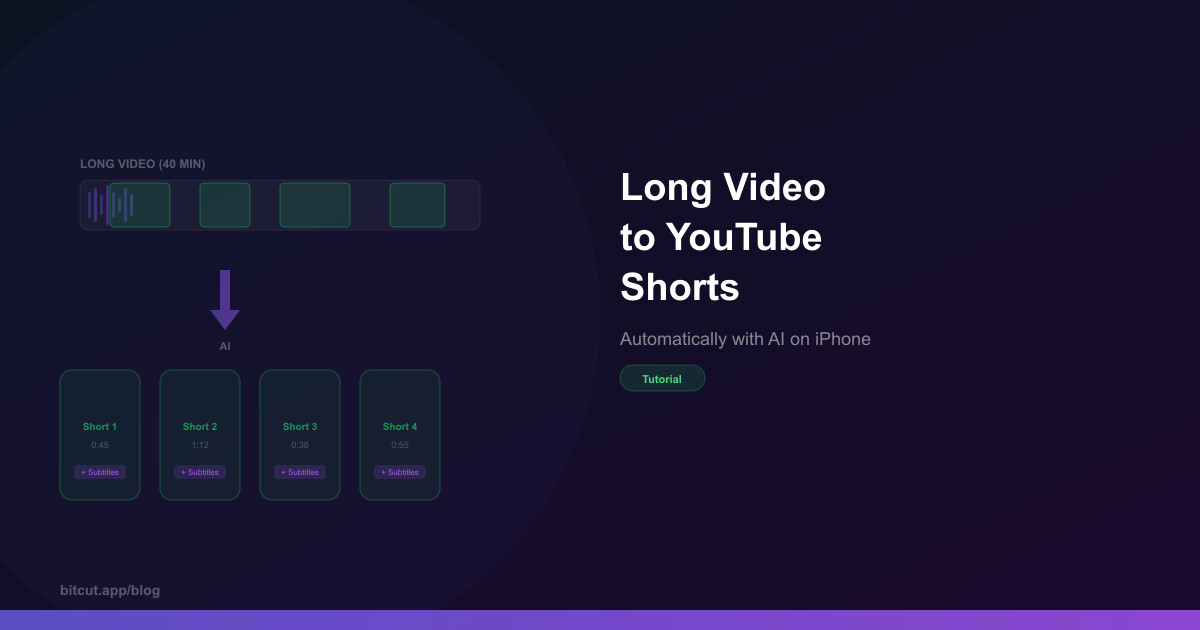
Bitcut is currently the only iPhone app that offers a complete "long video to multiple Shorts" pipeline natively. The feature is called Generate Shorts, and it works like this:
AI Transcription
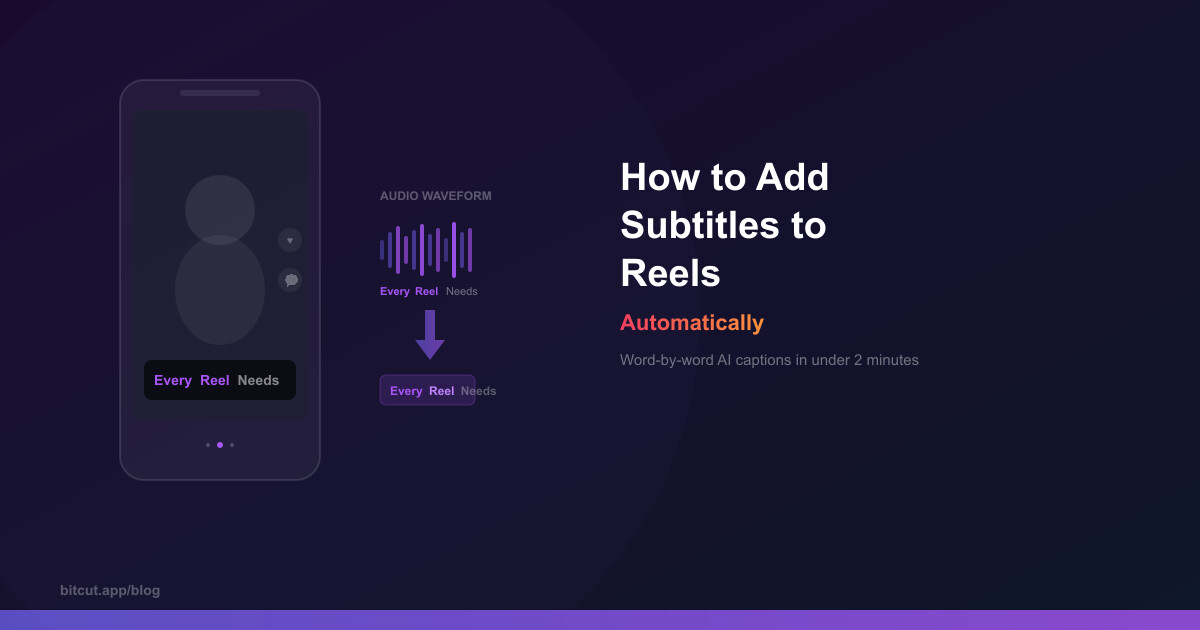
AI speech-to-text converts your audio to text with word-level timestamps accurate to ~50ms.
Smart Segmentation
AI analyzes the transcript and finds self-contained, engaging segments that work as standalone clips.
Face Tracking Reframe
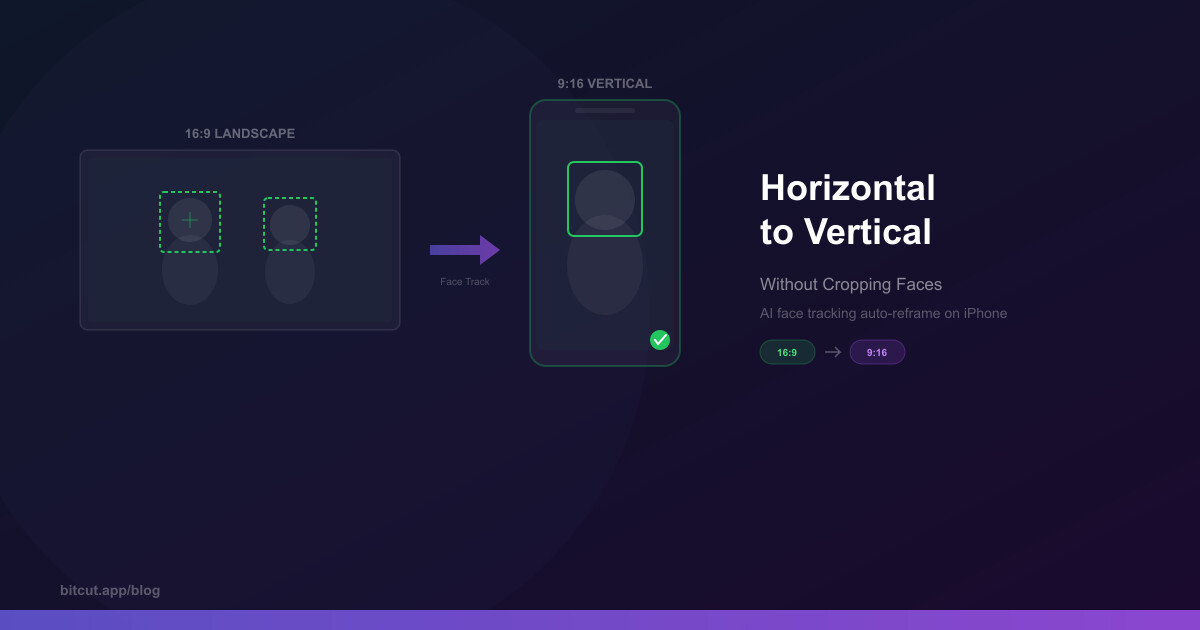
Converts 16:9 landscape to 9:16 vertical by tracking faces with spring-physics camera movement.
Beat Sync
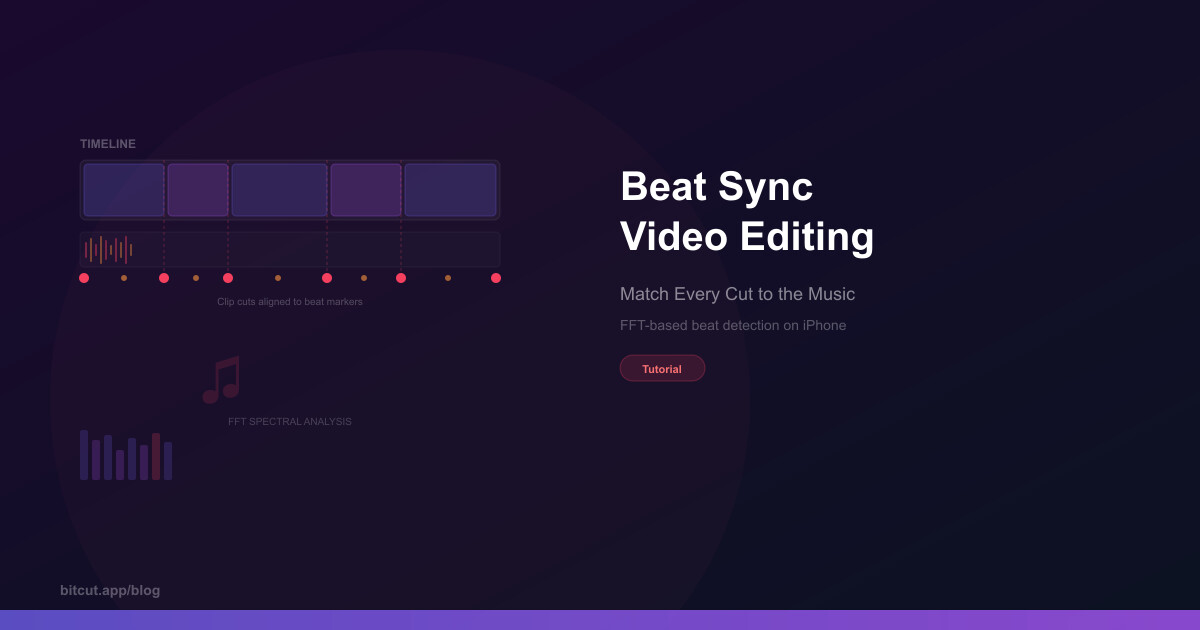
If you add background music, FFT-based beat detection auto-aligns your cut points to the rhythm.
The key difference from web tools: your video stays on your iPhone. Only the audio track is sent to a server for transcription — the video file never leaves your device. After processing, audio is deleted from the server within 24 hours.
Step-by-Step: Generate Shorts with Bitcut
Here's exactly how to create YouTube Shorts from a long video using Bitcut's Generate Shorts feature.
Import your long video
Open Bitcut and create a new project. Select your long video from your photo library or Files app. Bitcut works with videos stored on external drives too — it uses security-scoped bookmarks so no copying is needed.
Tap AI and select Generate Shorts
Hit the AI button in the toolbar and choose Generate Shorts. Bitcut extracts the audio track and uploads it to the server for AI transcription. A progress indicator shows each stage: uploading, transcribing, analyzing.
AI analyzes and segments your content
The server runs a three-stage pipeline: AI transcribes the audio with word-level timestamps, corrects any transcription errors, then analyzes the full transcript to find segments that work as standalone clips. Each segment gets scored on hook strength, coherence, and engagement potential. Processing takes 1-3 minutes for a 30-minute video.
Review your generated clips
Bitcut creates separate projects for each detected segment. Each clip comes with a suggested title, trimmed start/end points at natural speech boundaries, and word-level subtitles already synced. You can see quality scores for each clip — higher scores mean stronger standalone potential.
Customize and reframe
Open any generated clip to fine-tune it. Adjust the trim points, style the subtitles (7 animation presets, custom colors, karaoke or full-line mode), and enable Face Tracking to auto-reframe from landscape to vertical. Add background music and Bitcut will snap your cuts to the beat.
Export and publish
Export each Short at the resolution and quality you need. Choose Standard for full quality or Web Light (720p HEVC, ~15 MB/min) for faster uploads. Subtitles are burned into the video so they look identical on every platform.
How the Methods Compare
Every approach has trade-offs. This table compares the three methods along the dimensions that matter most: speed, quality, privacy, and cost.
| Feature | Manual Editing | Opus Clip | Klap | Vizard | Bitcut |
|---|---|---|---|---|---|
| AI clip detection | ✗ | ✓ | ✓ | ✓ | ✓ |
| Auto subtitles | ✗ | ✓ | ✓ | ✓ | ✓ AI |
| Face tracking reframe | ✗ | ✓ Basic | ✓ Basic | ✗ | ✓ Spring physics |
| Beat sync editing | ✗ | ✗ | ✗ | ✗ | ✓ FFT |
| Timeline editor | ✓ | ✗ | ✗ | ✓ Browser | ✓ Native |
| Works on iPhone | ✓ | ✗ Web only | ✗ Web only | ✗ Web only | ✓ Native |
| Video stays on device | ✓ | ✗ | ✗ | ✗ | ✓ Audio only |
| Works offline | ✓ | ✗ | ✗ | ✗ | ● Editor yes, AI no |
| Free tier | ✓ | 3 clips/mo | 2 clips/mo | Limited | 30 min/mo |
| Paid pricing | Free | From $19/mo | From $29/mo | From $24/mo | $9.99/mo |
7 Tips for Better Shorts (Regardless of Tool)
The tool you use matters less than how you structure your Shorts. These principles apply whether you're cutting manually or using AI.
1. Front-load the hook
The first 2-3 seconds decide whether someone keeps watching or scrolls past. Start with the most compelling statement, question, or visual — not an intro or greeting. If the AI-generated clip starts with "So anyway, as I was saying..." trim those first words off. The best hooks create an open loop: a question that demands an answer or a statement that challenges expectations.
2. Shorter beats longer (usually)
YouTube Shorts can be up to 60 seconds, but 30-45 seconds is the sweet spot for completion rate. The algorithm rewards videos that get watched to the end and replayed. A tight 35-second clip will outperform a meandering 58-second clip every time. Cut anything that doesn't directly serve the point.
3. Always add subtitles
85% of social media video is watched on mute. Word-level karaoke-style subtitles (where each word highlights as it's spoken) keep viewers engaged even without audio. They also improve accessibility and help non-native speakers follow along. This is the single highest-ROI addition you can make to any Short.
4. Reframe properly for vertical
Simply cropping the center of a 16:9 frame often cuts off the speaker's face or misses the action. Use face tracking to keep the subject centered in the 9:16 frame. If your tool doesn't offer face tracking, manually keyframe the crop position to follow the speaker.
5. Make it self-contained
A Short should make sense to someone who has never seen your long video. Avoid references to "what I said earlier" or inside jokes that require context. Each clip should deliver a complete idea: setup, payoff, done. This is what separates a good clip from a viral one.
6. Post consistently, not all at once
One long video can yield 5-10 Shorts. Instead of posting them all on the same day, spread them across the week. The YouTube Shorts algorithm favors channels that post regularly. Three Shorts per week is more effective than ten on Monday and zero the rest of the week.
7. Test different segments
You can't always predict which moment will resonate. Post multiple Shorts from the same source video and see which ones perform. Look at the retention curve in YouTube Analytics — if viewers drop off at a specific point, that tells you where the clip lost them. Use that data to improve future selections.
Frequently Asked Questions
YouTube Shorts can be up to 60 seconds. However, 30-45 seconds tends to perform best because the algorithm rewards completion rate — the percentage of viewers who watch to the end. A tight, well-edited 35-second clip will typically outperform a 58-second clip that drags. Start short and experiment with longer formats once you see what your audience responds to.
AI clip generators work best with speech-heavy content: podcasts, interviews, lectures, vlogs, commentary, and tutorials. The AI needs spoken words to analyze for segmentation. Pure visual content (travel montages, music videos, sports highlights) requires manual editing because there's no transcript for the AI to analyze. B-roll-heavy videos with voiceover work well since the voiceover provides the transcript.
Yes, for YouTube Shorts, TikTok, and Instagram Reels. Vertical 9:16 is required. If your source is horizontal (16:9), you have three options: center crop (loses the edges), letterbox with bars (wastes screen space), or face tracking auto-reframe (keeps the subject centered). Face tracking gives the best results because it dynamically follows the speaker rather than applying a static crop. Bitcut and some web tools offer this automatically.
No. YouTube explicitly encourages creators to repurpose their long-form content into Shorts. It's the same content creator posting clips from their own longer video — this is standard practice and is not considered duplicate content. In fact, YouTube's own Creator Academy recommends it as a growth strategy. Just make sure each Short can stand on its own and doesn't feel like an incomplete excerpt.
The full editor is free with no watermark on exports. The free tier includes 30 minutes of AI processing (transcription and segmentation) per month — enough for approximately 2-3 long videos. All non-AI features are unlimited: timeline editing, beat sync, face tracking, subtitle styling, voice enhancement, and export. The paid tier removes the AI minutes cap and adds cloud publishing for sharing clips via link.
The Bottom Line
Creating YouTube Shorts from long videos is no longer a question of "should I" — it's "how efficiently can I." The manual approach gives you maximum control but doesn't scale. Web tools are fast but require uploading your content to third-party servers. Native AI tools like Bitcut sit in the middle: fast processing with your video staying on your device.
For most iPhone-based creators, the practical approach is to start with one method and see if it fits your workflow. If you're already editing on your phone, a native tool avoids the desktop-to-phone context switch entirely. If you work primarily on desktop, a web tool might integrate better.
Whichever method you choose, the most important thing is to actually start repurposing. One long video sitting on your channel is one piece of content. That same video cut into 7 Shorts is a week of content — reaching audiences who would never click on a 30-minute video but will happily watch a 40-second clip.