How to Convert Horizontal Video to Vertical Without Cropping Faces
You Have Horizontal Footage. Platforms Want Vertical.
You filmed an interview in 16:9. Your conference talk was recorded in landscape. Your podcast has a wide two-shot. Now YouTube Shorts, Instagram Reels, and TikTok all want 9:16 vertical video — and they won't promote anything else.
This is the single biggest friction point for creators repurposing content: you have hours of perfectly good horizontal footage, but every platform algorithm favors vertical. The math is brutal.
The aspect ratio gap is real: a 16:9 frame is 3.16 times wider than a 9:16 frame. A simple center crop throws away over three-quarters of your image. If the speaker is off-center — which they usually are — you lose their face entirely.
3 Ways to Convert Horizontal to Vertical
There are three approaches to converting landscape video to portrait. Each makes a different trade-off between quality, effort, and result.
Method 1: Manual Center Crop
The brute-force approach: crop a vertical rectangle from the center of your horizontal frame. Fast and simple, but you lose context on both sides. If the subject moves left or right, they walk out of frame. For talking-head content where the speaker is dead-center and never moves, it works. For everything else, it doesn't.
Method 2: Letterbox with Blurred Background
Place the full horizontal video in the middle of a vertical frame and fill the empty space above and below with a blurred or colored background. This preserves all your content, but the actual video only occupies about 32% of the screen. On a phone, that's a tiny window — roughly the size of a credit card.
Some creators try to improve this by adding text or graphics in the empty space, which helps, but you're still fighting the fundamental problem: the viewer's attention is split between the tiny video and the filler content around it. Platform algorithms measure watch time and engagement signals, and letterboxed videos consistently underperform native vertical content. Viewers scroll past them because they look like they weren't made for the platform — because they weren't.
Method 3: AI Face Tracking Auto-Reframe
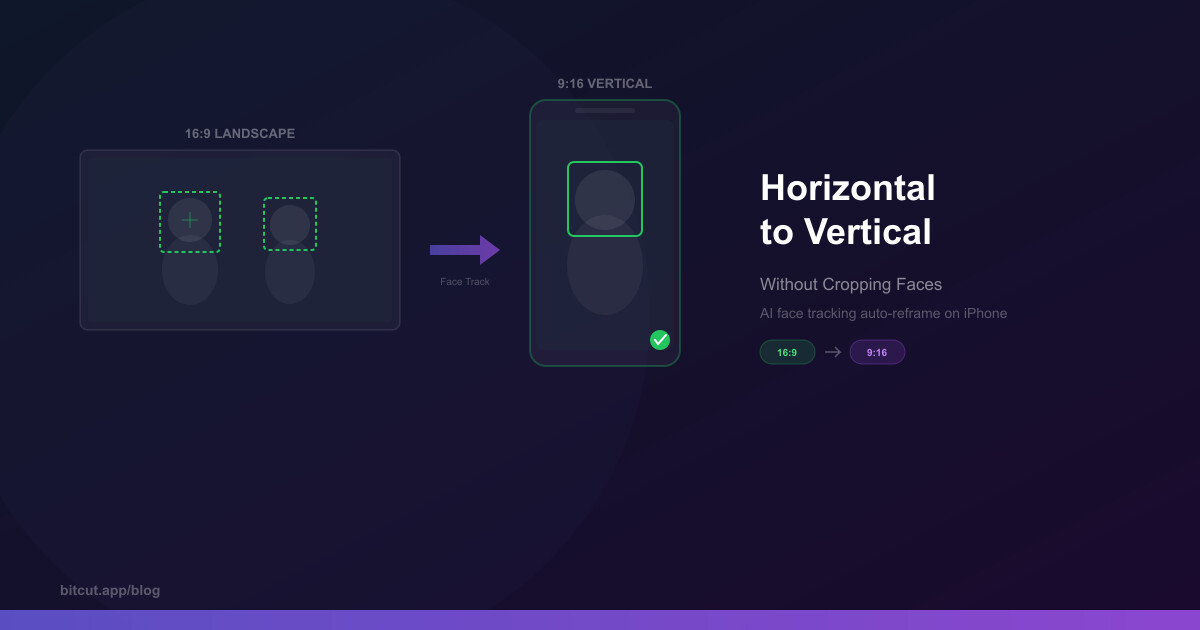
The smart approach: let AI analyze each frame, detect faces, and dynamically move a virtual camera to follow the active speaker. The output is a full 9:16 frame that's always focused on what matters — no black bars, no lost faces, no manual keyframing.
This is what professional studios use. Premiere Pro has it. DaVinci Resolve has it. And now Bitcut brings it to iPhone with a technical approach that most desktop tools don't match: spring physics for camera movement.
The difference matters. A naive auto-reframe that just centers the crop on a face every frame produces robotic, jittery motion that makes viewers dizzy. Spring physics simulate how a real camera operator would track the subject — with smooth acceleration, slight overshoot, and natural settling. The virtual camera has momentum, which means it moves the way humans expect cameras to move.
How AI Face Tracking Actually Works
Not all auto-reframe tools are the same. Cheap implementations just snap the crop to the detected face position every frame — which creates jittery, nauseating camera movement. Here's what a proper implementation requires.
Vision Framework Detection
Apple's Vision framework detects face bounding boxes at ~10fps analysis rate. Each face gets a unique tracking ID, position, and size across consecutive frames.
Spring Physics Camera
Instead of snapping to the face, a virtual camera follows it with spring dynamics — acceleration, damping, and momentum. The result looks like a skilled camera operator is panning, not a robot.
Scene Change Detection
When the video cuts between shots, the camera shouldn't smoothly pan — it should cut instantly. Two-pass scene detection identifies editorial cuts and resets the camera position at each one.
Multi-Face Priority
When multiple faces are visible, the algorithm scores each by size, centrality, and consistency to pick the active speaker. Scene changes trigger a fresh priority evaluation.
How to Auto-Reframe in Bitcut (Step by Step)
Import your horizontal video
Open Bitcut, create a new project, and add your 16:9 video from your photo library or Files app. Videos from external drives work too — Bitcut uses security-scoped bookmarks, so files don't get copied to your device.
Select the clip and enable Face Tracking
Tap the clip on the timeline, then tap the Face Tracking button in the clip toolbar. This opens the face tracking mode with a multi-crop preview showing your horizontal source and the vertical output side by side.
Run face analysis
Tap "Analyze" to start face detection. Bitcut scans the video at ~10fps using Apple's Vision framework, detects all faces, identifies scene changes, and builds a camera motion path. Processing time is about 5-10 seconds per minute of footage.
Review and adjust keyframes
After analysis, you'll see a face strip showing detected faces and camera keyframes on the timeline. Scrub through to verify the tracking. If the camera picked the wrong face in a scene, you can manually adjust the keyframe position. Most of the time, the automatic result just works.
Export at 9:16
Set your export aspect ratio to 9:16 (vertical) and render. The face tracking data is baked into the export — each frame is cropped dynamically based on the camera path. The output is a full-resolution vertical video with smooth, professional-looking camera movement.
Auto-Reframe: Bitcut vs. Other Tools
Several editors offer auto-reframe, but the implementation quality varies dramatically. Here's how they compare on the features that actually matter for converting horizontal to vertical.
| Feature | Bitcut | CapCut | Premiere Pro | DaVinci Resolve |
|---|---|---|---|---|
| Auto-reframe | ✓ | ● Effects only | ✓ | ✓ |
| Spring physics camera | ✓ | ✗ | ✗ | ✗ |
| Scene change detection | ✓ Two-pass | ✗ | ✓ | ✓ |
| Multi-face priority scoring | ✓ | ✗ | ● Basic | ● Basic |
| On-device processing | ✓ iPhone | ✗ Cloud | ✓ Desktop | ✓ Desktop |
| Manual keyframe override | ✓ | ✗ | ✓ | ✓ |
| Built-in AI subtitles | ✓ | ✓ | ✗ | ✗ |
| Platform | iPhone / iPad | Mobile / Web | Desktop ($22/mo) | Desktop (Free/$295) |
Tips for Best Results
Working with Scene Changes
If your source video has editorial cuts (switching between camera angles, B-roll inserts), Bitcut's two-pass scene detection handles this automatically. The first pass identifies cuts at ~10fps, then a binary search refines each cut to within ~12ms. The camera resets instantly at each cut instead of smoothly panning — which is what viewers expect.
Interview and Two-Person Shots
For interviews where two people face each other, the face tracking algorithm scores each face by size, centrality, and how long they've been consistently visible. It locks onto the active speaker and holds that framing until a significant change occurs — like a scene cut or the other person becoming the clear visual focus. You won't get the camera ping-ponging between two faces during a conversation.
What Happens When No Faces Are Visible
B-roll, landscape shots, product close-ups — not every clip has faces. When no face is detected, Bitcut holds the last known camera position briefly (in case the face is temporarily obscured), then gracefully falls back to a center crop. If you need a specific framing for faceless sections, you can manually set a keyframe position to focus on the area that matters.
The Full Vertical Content Workflow
Face tracking is one piece of the puzzle. For the highest-performing vertical content, combine auto-reframe with Bitcut's other AI features. Start with a horizontal long-form video. Use Generate Shorts to have AI find the best self-contained segments. Enable face tracking on each generated clip. Add auto-subtitles with Clips Enhancement. Drop in a music track and let beat sync align your cuts. The result is platform-native vertical content that looks like it was shot and edited specifically for Shorts — even though your source was a 45-minute landscape recording.
Frequently Asked Questions
No. Auto-reframe is a crop, not a resize. If your source is 1920x1080, the vertical crop takes a 607x1080 slice from the frame — which is then output as 1080x1920 (full HD vertical). You're working with the original pixel data, not upscaling. The only quality loss is if your source resolution is low to begin with.
Face tracking works with any source aspect ratio. The wider the source relative to the output, the more room the virtual camera has to move. A 16:9 source gives the most flexibility for 9:16 output. A 4:3 source works but has less horizontal range. A 1:1 (square) source is already narrow, so the crop margin is minimal — but face tracking still centers on the detected face.
About 5-10 seconds per minute of footage on a modern iPhone (A15 chip or newer). The analysis runs entirely on-device using Apple's Vision framework — no server upload, no internet required. A 10-minute clip takes about a minute to analyze.
After analysis, you can review the camera path by scrubbing through the timeline. If the wrong face is tracked in a particular scene, you can manually adjust the keyframe to reposition the crop. The spring physics will smoothly interpolate between your manual keyframe and the surrounding automatic ones.
Currently, face tracking is applied per-clip on the timeline. If you have multiple clips in a project, each one gets its own face analysis and camera path. For bulk conversion of many separate videos, process them as individual projects. Batch face tracking across a full timeline is on the roadmap.
The Bottom Line
Stop Losing Faces to Center Crops
Every horizontal video you post as a letterboxed vertical is leaving reach on the table. AI face tracking solves the conversion problem properly — full-frame vertical output that follows the subject with natural camera movement. No manual keyframing, no black bars, no cropped-out speakers.
Bitcut's spring physics approach produces smoother results than snap-to-face implementations, and the two-pass scene detection handles multi-angle footage that trips up simpler tools. The entire analysis runs on your iPhone in seconds.