CapCut Alternatives That Respect Your Privacy (2026)
The Privacy Problem with CapCut
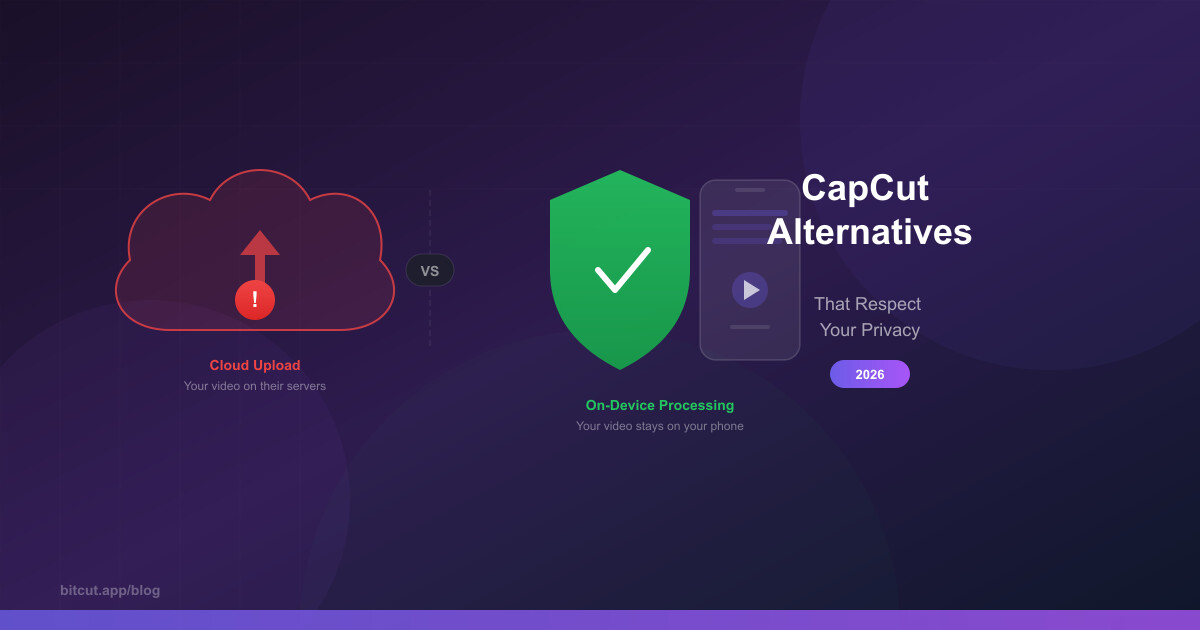
CapCut is the most popular free video editor on the App Store. It's fast, polished, and packed with features. But there's a catch most users miss: every video you edit is uploaded to ByteDance's servers.
ByteDance — the company behind TikTok — processes your footage in the cloud for AI features like auto-captions and background removal. Their Terms of Service grant them a "perpetual, irrevocable, royalty-free license" to use content processed through their services.
What Makes a Video Editor Privacy-Friendly?
Privacy Checklist for Video Editors
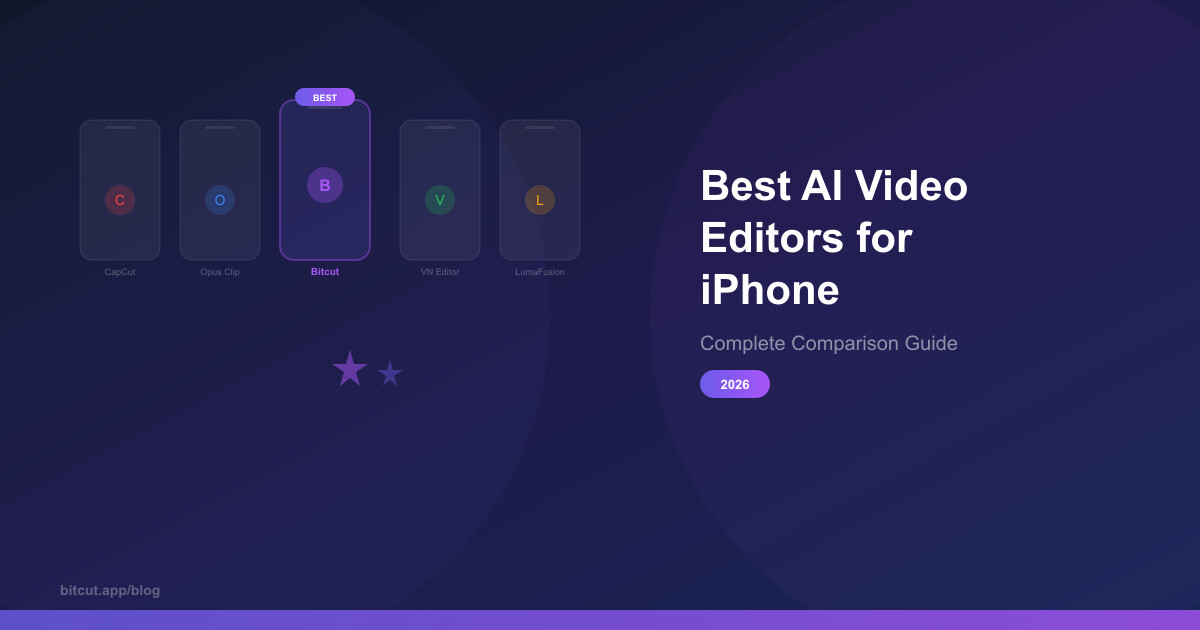
5 CapCut Alternatives Ranked by Privacy
1. Bitcut — Best Overall (On-Device AI)
On-Device Processing
Video never leaves your iPhone. AI subtitles, beat sync, and face tracking all run locally.
AI Smart Trimming
Automatically finds the best segments in your footage using speech analysis and AI segmentation.
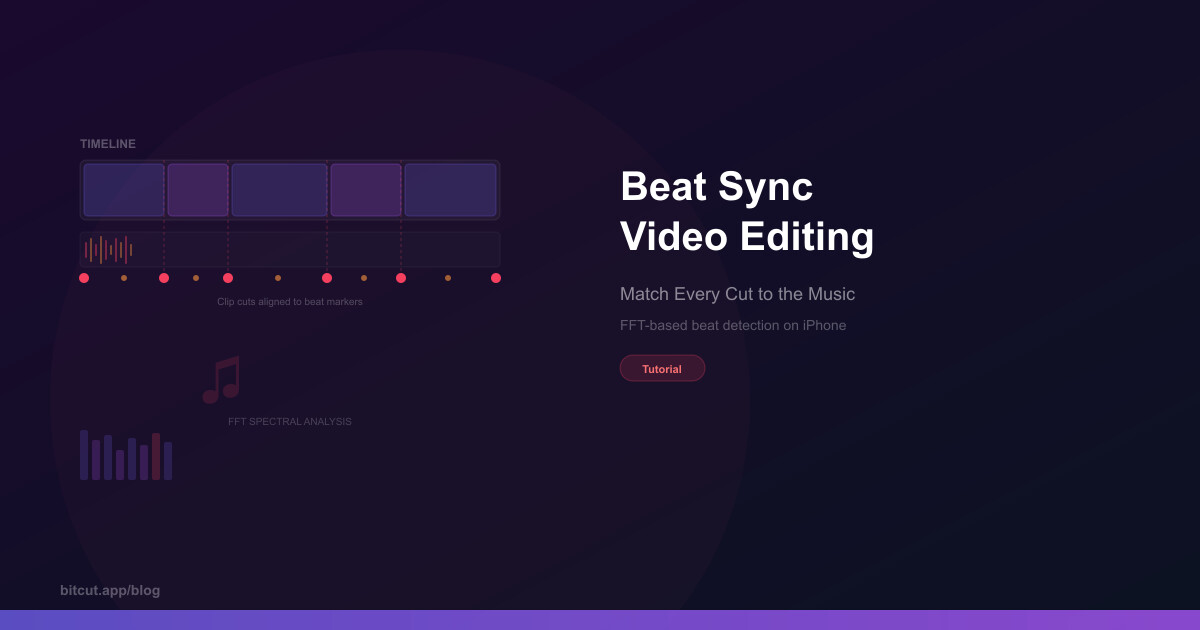
Beat Sync Editing
FFT-based beat detection auto-aligns your cuts to the music. No other mobile editor does this.
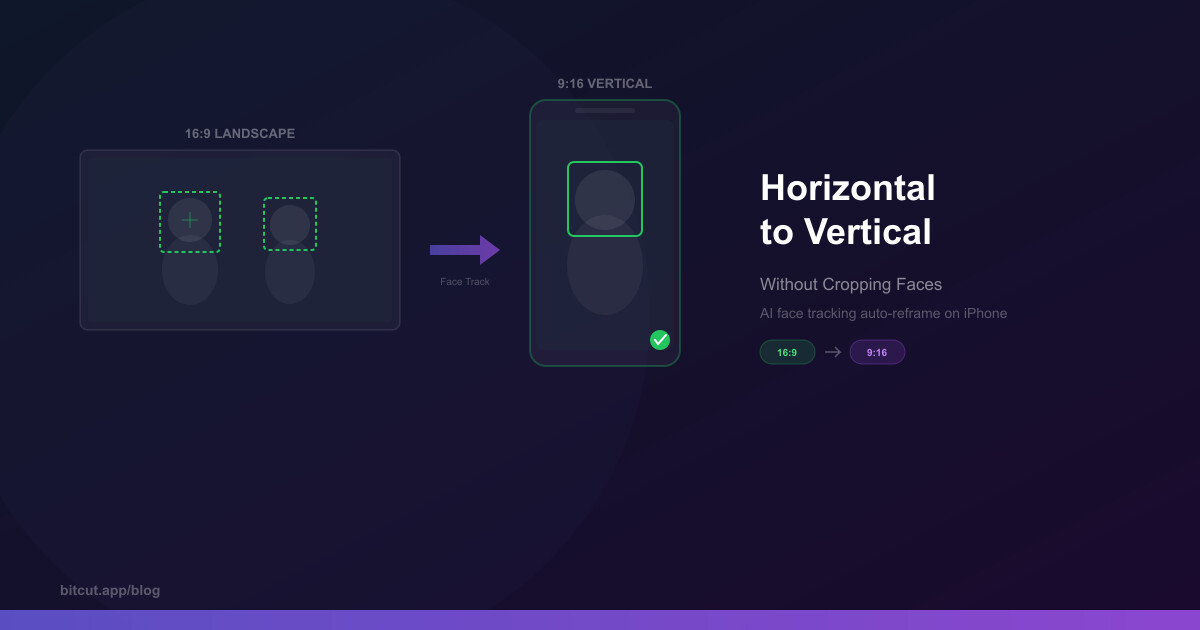
Face Tracking Reframe
Converts 16:9 to 9:16 by tracking faces with spring physics for smooth camera movement.
Only AI transcription (speech-to-text) sends audio to the server. Beat detection, face tracking, smart trimming, subtitle rendering, voice enhancement, and all editing features work 100% on-device. The server uses advanced AI for high-quality word-level transcription — on-device speech detection is used for quick analysis only.
No. Bitcut never uploads your video files. For transcription, only the audio track is extracted and sent. After processing, audio is deleted from the server within 24 hours. If you use Cloud Publish (optional), you choose which finished shorts to upload for sharing via link.
Yes. The full editor is free with no watermark on exports. The free tier includes 30 minutes of AI processing (transcription) per month. Beat sync, face tracking, timeline editing, and manual subtitle editing are unlimited and free.
2. InShot — Good for Basic Edits
InShot offers a clean editing interface with solid basic tools. Most editing happens on-device, though some AI features (like AI-generated effects) use cloud processing.
Pros: Fast, intuitive interface. Good filters and transitions. Cross-platform. Free tier available.
Cons: No AI subtitle generation. No beat sync. No face tracking auto-reframe. Watermark on free exports. Some features require cloud processing.
3. Videoleap — Professional Features
Videoleap (by Lightricks) offers professional-grade editing tools including keyframe animations, layer-based editing, and chroma key. Processing is primarily on-device.
Pros: Professional features (layers, keyframes). Good effects library. Strong editing tools.
Cons: Expensive subscription ($7.99/week or $35.99/year). Template system uses cloud. No AI transcription built-in. Steeper learning curve.
4. LumaFusion — Desktop-Grade on iPad
LumaFusion is the gold standard for professional mobile editing. Everything runs 100% on-device — no cloud processing at all.
Pros: Complete offline operation. Multi-track timeline. Professional color grading. One-time purchase ($29.99).
Cons: No AI features (no auto-subtitles, no smart trimming). Manual-only editing. Steeper learning curve. No short-form content workflow.
5. VN Video Editor — Free and Simple
VN is a straightforward editor with no account requirements and on-device processing for most features.
Pros: Completely free. No watermark. Clean interface. Speed curves and keyframes.
Cons: Minimal AI features. Manual subtitles only. No beat detection. No face tracking. No smart trimming.
Full Comparison
| Feature | Bitcut | InShot | Videoleap | LumaFusion | VN |
|---|---|---|---|---|---|
| On-device editing | ✓ | ✓ | ✓ | ✓ | ✓ |
| AI subtitles | ✓ AI | ✗ | ✗ | ✗ | ✗ |
| Beat sync | ✓ FFT | ✗ | ✗ | ✗ | ✗ |
| Face tracking reframe | ✓ | ✗ | ✗ | ✗ | ✗ |
| Generate Shorts from long video | ✓ | ✗ | ✗ | ✗ | ✗ |
| No video upload required | ✓ | ● Partial | ● Partial | ✓ | ✓ |
| Free (no watermark) | ✓ | ✗ Watermark | ✗ Paywall | ✗ $29.99 | ✓ |
| Price | Free / $9.99/mo | Free / $3.99/mo | $7.99/wk | $29.99 once | Free |
How to Switch from CapCut
Export your CapCut projects
Before switching, export all your CapCut projects as video files. CapCut doesn't support project file export, so render each project at maximum quality.
Download your alternative
Install your chosen privacy-friendly editor. Bitcut is free on the App Store with no account required — just download and start editing.
Import your source footage
Import your original video files (not the exported CapCut renders). In Bitcut, tap + to add videos from your photo library or Files app.
Re-add subtitles with AI
Instead of retyping subtitles, use AI transcription. In Bitcut, tap Enhance to auto-generate word-level subtitles with automatic text correction. Takes about 15 seconds per clip.
Delete CapCut and its data
Once you've migrated your content, delete CapCut. On iOS, go to Settings > General > iPhone Storage > CapCut > Delete App to remove all cached data.
The Bottom Line
Our Recommendation
If you want AI features (auto-subtitles, smart trimming, face tracking) without sacrificing privacy, Bitcut is the best option. It's the only editor that combines CapCut-level AI capabilities with on-device processing.
If you don't need AI features and want a professional manual editor, LumaFusion offers 100% offline editing with zero data collection. For a free, no-frills editor, VN is a solid choice.
Frequently Asked Questions
"Dangerous" is strong, but the privacy trade-off is real. CapCut collects device identifiers, location data, and processes your video on ByteDance servers. For personal videos, memes, and public content, the risk is low. For business content, client footage, or anything sensitive, the lack of control over where your data goes is a legitimate concern.
The editor works fully offline — timeline editing, beat sync, face tracking, voice enhancement, and export all work without internet. Only AI transcription requires a connection because the AI model is too large to run on-device efficiently. All other features are 100% local.
You can manually add and style subtitles offline. Automatic transcription (speech-to-text) requires internet. Once subtitles are generated, all editing, styling, and animation customization works offline.
Bitcut is currently iOS only (iPhone and iPad). On Android, InShot and VN are your best privacy-friendly options, though neither offers AI subtitles or beat sync. For Android users who need AI features with privacy, consider desktop alternatives like DaVinci Resolve (free) or Descript.