Bitcut for Musicians: Concert Footage to Beat-Synced Vertical Clips
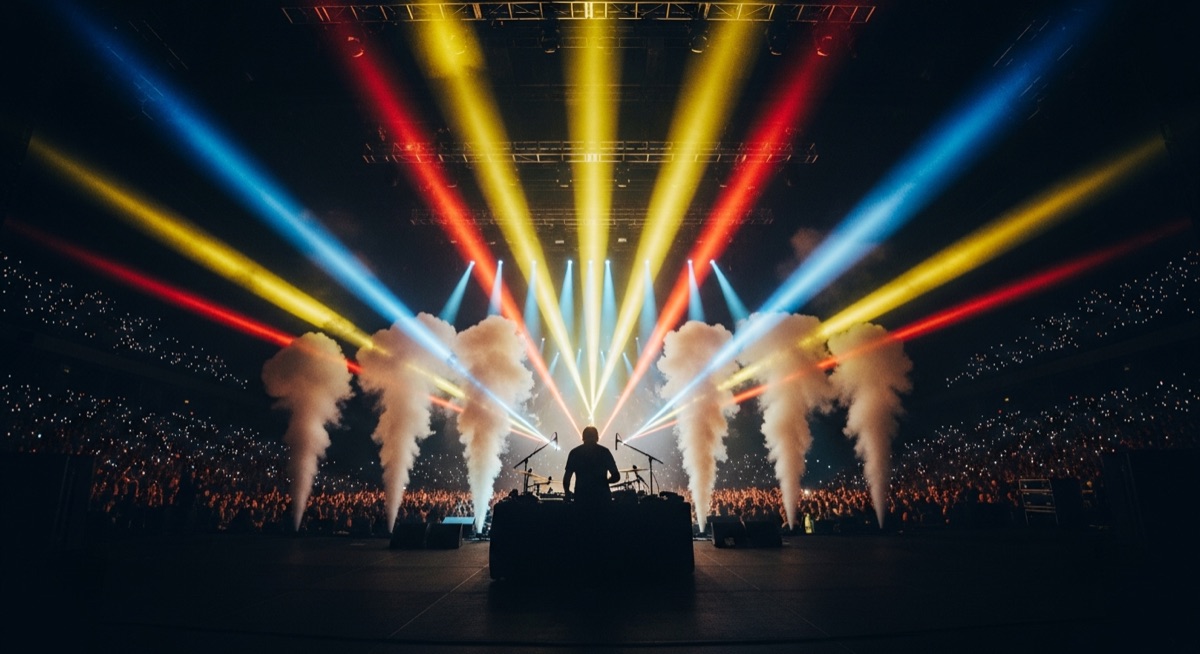
You have hours of concert footage. Maybe from a phone in the crowd, maybe from a proper camera rig. Either way, it is horizontal, it is long, and it does not fit Reels or TikTok.
Bitcut turns that footage into vertical clips where cuts land on the beat, your face stays in frame, and the energy of the performance translates to a 60-second clip.
Concert Video Editor: Beat Sync, Face Tracking and Mixing
Beat Sync
Bitcut analyzes the audio and detects every beat and transient. When you trim clips or add transitions, everything snaps to the music. Cuts feel intentional because they land exactly on the beat.
Guide: Beat SyncFace Tracking
Concert footage is usually 16:9 with the performer somewhere in the frame. Face Tracking finds you, creates a 9:16 crop, and follows your movement with spring-physics smoothing. Scene changes are handled automatically.
Guide: Face TrackingSmart Trimmer
For clips without speech, Smart Trimmer uses visual analysis to find the most dynamic moments — movement, energy, crowd reaction. It picks the strongest 5–15 seconds from each clip.
Guide: Smart TrimmerAudio Mixing
Layer a clean studio recording under live footage, duck the ambient audio, or enhance the live vocals. Full control over what your audience hears.
Guide: AudioTransitions
Nine transition types including dissolves, fades, and wipes. When beat sync is active, transitions land exactly on the beat for musically precise edits.
Guide: Transitions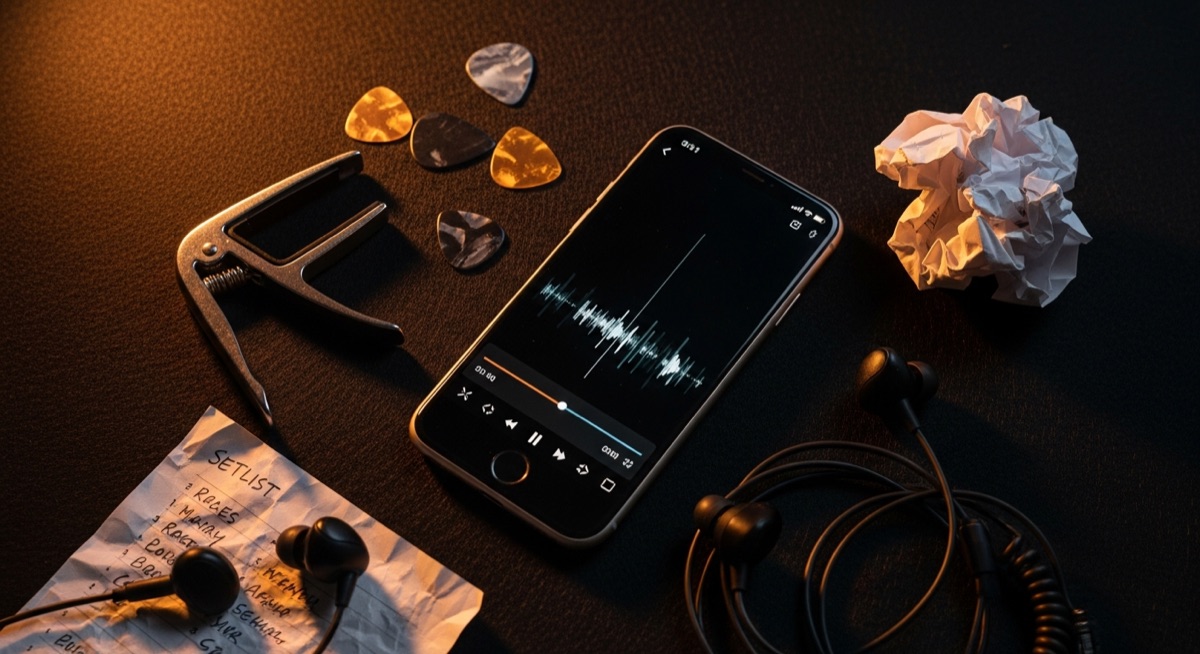
Step by Step: Concert to Clips
Import your footage
Create a new project in Bitcut. Import concert clips from camera roll, Files, or an external drive. Multiple clips from different angles work together.
Add a music track (optional)
If you want cuts synced to a studio recording instead of live audio, add the track to the timeline. Bitcut detects its beats and all clip boundaries snap accordingly.
Use Smart Add or arrange manually
Tap Smart Add to let Bitcut analyze and trim clips automatically, or drag them onto the timeline yourself. Either way, boundaries snap to beats.
Face Track for vertical
Tap the Face Tracking button on any 16:9 clip. Bitcut detects your face, creates a 9:16 crop, and tracks your movement through the entire clip. Review and adjust if needed.
Export
Export in 9:16 for Reels and TikTok, or 1:1 for Instagram feed. The beat sync, face tracking, and audio mixing are all baked into the final file.
Per Performance: Vertical Clips with Beat-Locked Cuts
From a set of concert clips, you get vertical videos where:
- Every cut lands on a beat — the edit feels like part of the performance
- Your face stays centered in the vertical frame, even as you move on stage
- Scene changes between camera angles are detected and handled automatically
- Audio is clean, whether you use the live recording or layer a studio track
Why Bitcut for Musicians
Frequently Asked Questions
How does beat sync work?
Bitcut analyzes the audio waveform to detect beats and transients. When you add clips to the timeline, they snap to the nearest beat boundary. Cuts land on downbeats, transitions feel musical.
Does Face Tracking work with multiple performers on stage?
Face Tracking detects all faces in the frame and locks onto the most prominent one per scene. When the camera cuts to a different performer, Bitcut detects the scene change and re-locks. You can also manually adjust which face to follow.
Can I use my own music track instead of the concert audio?
Yes. Add a music track to the timeline and Bitcut detects its beats. Clip boundaries and transitions will sync to the new track instead of the original audio.
What if my concert footage has bad audio?
Use Voice Enhancement to clean up live audio, or replace it entirely with a studio recording. Bitcut audio ducking lets you mix the original room audio under a clean track.
Can I make clips from a multi-camera shoot?
Import footage from multiple cameras as separate clips. Arrange them on the timeline and use beat sync to cut between angles on the beat. Face Tracking works independently on each clip.