Bitcut for Esports Coaches: Turn Coaching Sessions into Strategy Clips
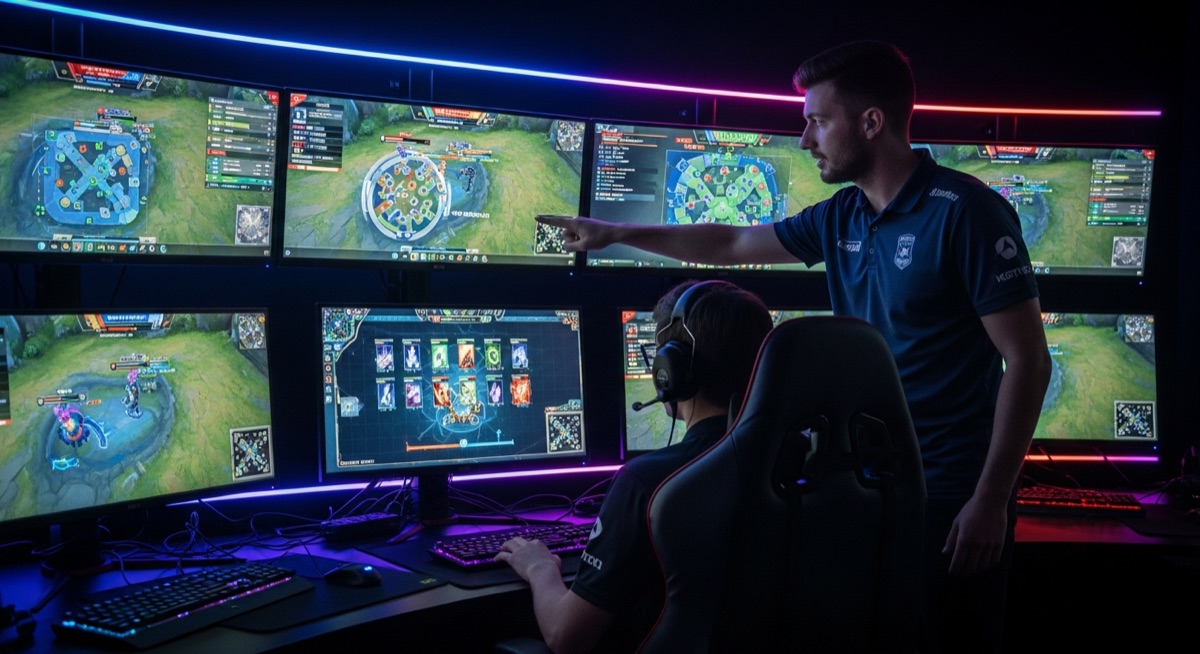
You record hours of coaching sessions, VOD reviews, and strategy breakdowns. Inside those recordings are the moments that make players better — a rotation call, a draft analysis, a positioning correction. But they are buried in two hours of footage that nobody wants to rewatch in full.
Bitcut extracts those moments on your iPhone. Smart Trimmer finds the high-action plays, AI adds subtitles to your commentary, and Beat Sync gives the clips a professional feel. You get a library of shareable strategy content without touching a desktop editor.
Esports Coaching Editor: Smart Trimmer, Sync and Subtitles
Smart Trimmer
Smart Trimmer uses visual analysis to detect high-intensity moments in your footage — team fights, fast engagements, rapid ability usage, and decisive plays. From a 2-hour session, it picks the segments with the most on-screen action without you watching a single minute.
Guide: Smart TrimmerBeat Sync
Add an epic soundtrack and Bitcut maps every beat in the audio. Clip boundaries snap to the beat grid, so transitions between strategy moments land on downbeats. Your breakdown feels like a produced montage, not a raw screen recording.
Guide: Beat SyncAI Subtitles
Your coaching commentary is what makes these clips valuable. Bitcut transcribes it automatically and generates word-level subtitles — karaoke-style highlighting or full-line mode. Players can follow your analysis even with the sound off.
Guide: Subtitle StylesAI Story Mode
AI Story Mode structures each clip around a narrative arc: setup (what the team was trying to do), problem (what went wrong), solution (the correct play). Each clip becomes a self-contained lesson that makes sense without watching the full session.
Guide: Generate ShortsTitle Cards
Label each clip with player names, team tags, strategy names, or map callouts. Built-in styles let you match your team branding. Title cards are burned into the export — no separate tool needed for text overlays.
Guide: Title Cards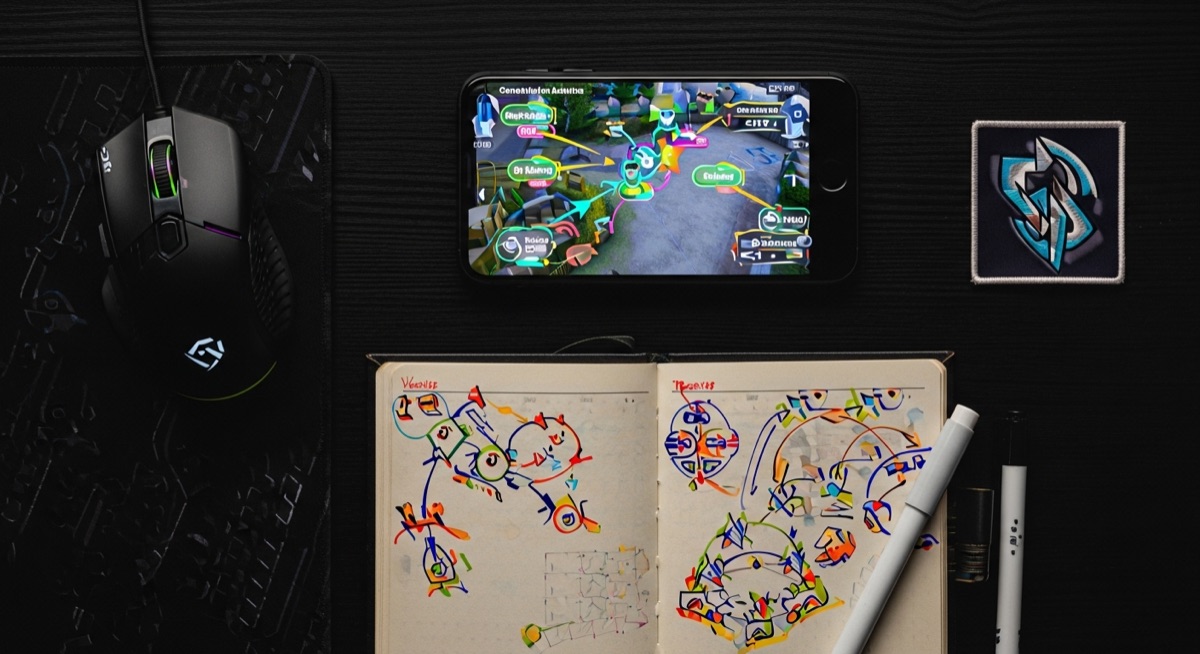
Step by Step: Coaching Session to Strategy Library
Import your coaching footage
Open Bitcut, create a new project, and import your VOD review, scrim recording, or coaching session from the camera roll, Files, or an external drive. Screen recordings and capture card footage both work.
Smart Add to find key moments
Tap Smart Add and Bitcut analyzes the footage. Clips with your coaching commentary get AI transcription and intelligent trimming — each clip is cut to a complete thought. Gameplay-only segments go through Smart Trimmer, which picks the highest-action moments.
Add soundtrack and sync to beats
Pick an epic track from your library. Bitcut detects every beat in the waveform. Clip boundaries snap to the beat grid — transitions between strategy moments feel tight and intentional.
Add title cards and player labels
Add a title card with the strategy name, player names, or team tags. Apply subtitle styling that matches your brand. Use Silence Removal to trim dead air between coaching points for tighter pacing.
Export and share
Export as vertical 9:16 for TikTok and Shorts, or keep 16:9 for YouTube strategy breakdowns. Subtitles, title cards, music sync, and filters are all baked into the final file. Share directly or publish to Bitcut Cloud for team review.
Per Session: 12 Strategy Clips with No Manual Scrubbing
From a 2-hour coaching session, you get a library of strategy clips where:
- Each clip focuses on one teachable moment — a rotation, a draft decision, a positioning error and correction
- Commentary is transcribed with burned-in subtitles for silent viewing
- Transitions land on beats for a polished, professional feel
- Player names and strategy labels are embedded in the video
- Dead air and filler are removed for tight, focused pacing
The entire process takes minutes of active work. Smart Trimmer watches the footage, AI structures the narrative, and Beat Sync handles the editing rhythm.
Esports Coaches, Pro Analysts and Gaming Educators
This workflow fits anyone creating educational esports content:
- Esports coaches — build a clip library of strategy breakdowns from VOD reviews and share them with your roster
- Pro team analysts — extract key plays from scrim footage and create digestible breakdowns for player review
- Gaming educators — turn long coaching sessions into bite-sized lessons for YouTube, TikTok, or your coaching platform
- Tournament organizers — create highlight reels and strategy recaps from match recordings for social media promotion
Why Bitcut for Esports Coaching Content
Frequently Asked Questions
How does Smart Trimmer detect action moments in coaching footage?
Smart Trimmer measures motion energy and frame-to-frame visual changes. Moments with rapid action — team fights, clutch plays, critical rotations — score higher than menus, loading screens, or slow panning. It finds the peaks automatically so you do not have to scrub through the entire session.
Can I sync strategy clips to epic game soundtracks?
Yes. Add any music track to the timeline and Bitcut detects every beat and transient in the audio. When you trim or rearrange clips, boundaries snap to the nearest beat. The result is a strategy breakdown that feels like a produced highlight reel, not a raw recording.
Does AI Story Mode work for coaching breakdowns?
AI Story Mode analyzes your commentary and structures clips around a narrative arc — setup, problem, solution. For coaching content, this means each clip starts with context, shows the mistake or challenge, and ends with the correction. Viewers get a complete learning moment in under 90 seconds.
Can I add player names and team logos to clips?
Use Title Cards to add player names, team labels, or strategy names at any point in the clip. Choose from built-in styles or customize fonts and colors to match your team branding. Title cards are burned into the export — no separate overlay app needed.
Is there a limit on how long a coaching session can be?
There is no hard limit on video length. AI processing time counts against your plan: Free gives 30 minutes per month, Pro gives 300 minutes, Creator gives 1,000 minutes. A 2-hour session uses 120 minutes of quota.