Bitcut for Gamers: Turn Gameplay Recordings into TikTok Highlights
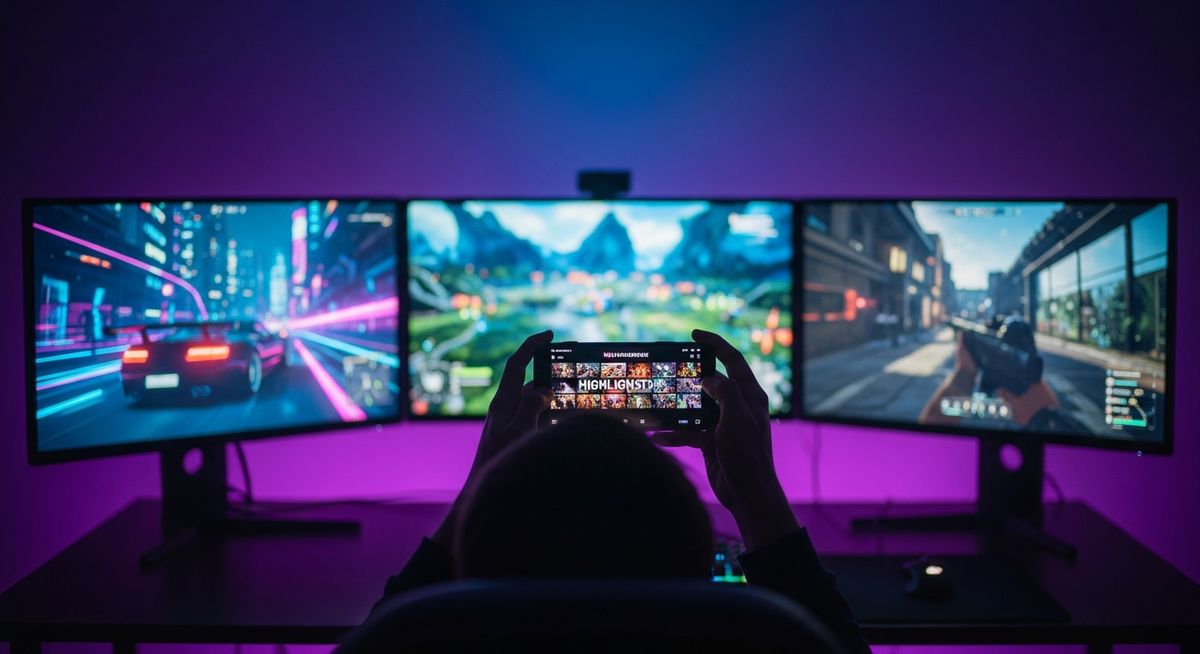
You have hours of gameplay sitting on your device. Screen recordings, capture card footage, streaming sessions. Somewhere in there are clutch plays, funny moments, and clips that would do well on TikTok or YouTube Shorts. The problem is finding them without watching the entire recording.
Bitcut solves this on your iPhone. Smart Trimmer scans your footage for high-motion moments, picks the highlights, and drops them onto a timeline. Add music, sync cuts to the beat, throw on a filter, and export. No desktop editor, no manual scrubbing through 3 hours of gameplay.
Gaming Highlight Reel: AI Features That Find Your Best Moments
Smart Trimmer
Smart Trimmer uses visual analysis to detect high-motion moments in your footage — fast camera movement, rapid action, intense frame-to-frame changes. From a 3-hour recording, it picks the 10–15 second peaks without you watching a single minute.
Guide: Smart TrimmerBeat Sync
Add a music track and Bitcut maps every beat in the audio. When you trim clips or rearrange them, boundaries snap to the nearest beat. Your montage cuts land on downbeats — the edit feels like a music video, not a random compilation.
Guide: Beat SyncAI Subtitles
For commentary clips with voice, Bitcut generates word-level subtitles automatically. Choose karaoke-style word-by-word highlighting or full-line mode. Customize fonts, colors, and animation — subtitles are burned into the final export.
Guide: Subtitle StylesTitle Cards
Add intro cards with the game name, your handle, or clip context. Built-in styles let you match your brand. Title cards are burned into the export — no separate app needed for text overlays.
Guide: Title CardsVideo Filters
10 filter presets designed for real footage. Vivid boosts color saturation for vibrant game worlds. High Contrast adds punch to dark scenes and explosions. Preview in real time and apply per clip or across the entire project.
Guide: Video FiltersTransitions
Nine transition types for montage editing. Wipes, zooms, and push transitions add energy between clips. With beat sync, every transition lands on the beat.
Guide: Transitions
Step by Step: Gameplay to Highlights
Import your gameplay
Open Bitcut, create a new project, and import your screen recordings or capture card footage from the camera roll, Files, or an external drive. Multiple recordings from the same session work together.
Smart Add to find highlights
Tap Smart Add and Bitcut analyzes every clip for visual intensity. Clips with commentary get AI transcription and intelligent trimming. Clips without voice go through Smart Trimmer, which picks the highest-motion segments — clutch plays, fast fights, decisive moments.
Add music and sync to beats
Pick a track from your library or import an audio file. Bitcut detects every beat in the waveform. Clip boundaries snap to the beat grid automatically — every cut, every transition lands on the music.
Add title card and apply filter
Add a title card at the start with the game name and your tag. Apply a video filter — Vivid or High Contrast work well for gaming — to give the footage a polished, consistent look across all clips.
Export and post
Export as vertical 9:16 for TikTok and Shorts, or keep the original aspect ratio for YouTube. Beat sync, filters, title cards, and subtitles are all baked into the final file. Post directly or publish to Bitcut Cloud for sharing.
Beat-Synced Montage Results with Subtitles for TikTok
From a long gameplay session, you get a set of highlight clips where:
- Only the most intense moments make it in — no loading screens, no menus, no dead time
- Every cut lands on a beat — the montage feels like a produced highlight reel
- Commentary clips have burned-in subtitles with customizable style
- Title cards brand your content with the game name and your handle
- Filters give the footage a consistent, polished look across all clips
The entire process takes minutes of your time instead of hours of manual scrubbing. Smart Trimmer watches the footage so you do not have to.
Twitch Streamers, YouTube Gamers and Esports Creators
This workflow fits anyone creating gaming content for social media:
- Twitch streamers — turn long stream VODs into highlight clips for TikTok and YouTube Shorts
- YouTube gaming channels — repurpose gameplay footage into short-form content to grow your audience
- Mobile gamers — edit screen recordings directly on your iPhone without transferring files to a desktop
- Esports content creators — build montages of tournament plays, clutch moments, and team highlights
Why Bitcut for Gaming Content
Frequently Asked Questions
How does Smart Trimmer detect action moments in gameplay?
Smart Trimmer uses visual analysis to measure motion energy and frame-to-frame changes. Intense moments — fast camera movement, explosions, rapid scene transitions — score higher than idle menus or slow panning. It picks the peak-action segments from your recording automatically.
Can I add my own music and sync cuts to the beat?
Yes. Add any music track to the timeline and Bitcut detects every beat and transient in the audio. Clip boundaries snap to the nearest beat, so your montage cuts land on downbeats. The result feels like a professionally edited highlight reel.
Does Bitcut work with screen recordings from iPhone or iPad?
Bitcut works with any video in your camera roll, including iOS screen recordings. Import the recording, use Smart Add to find the best moments, add music, and export. No file conversion needed.
Can I add subtitles to commentary clips?
Yes. For clips with voice commentary, Bitcut sends the audio to AI transcription and generates word-level subtitles automatically. Choose karaoke-style highlighting or full-line mode, customize colors and animation, and subtitles are burned into the export.
What video filters work best for gaming content?
Vivid and High Contrast are the most popular for gaming — they boost colors and make on-screen action pop. Bitcut includes 10 filter presets that you can preview in real time before exporting. Apply a filter to individual clips or the entire project.