Bitcut for Skills Trainers: Turn Course Recordings into Micro-Lessons
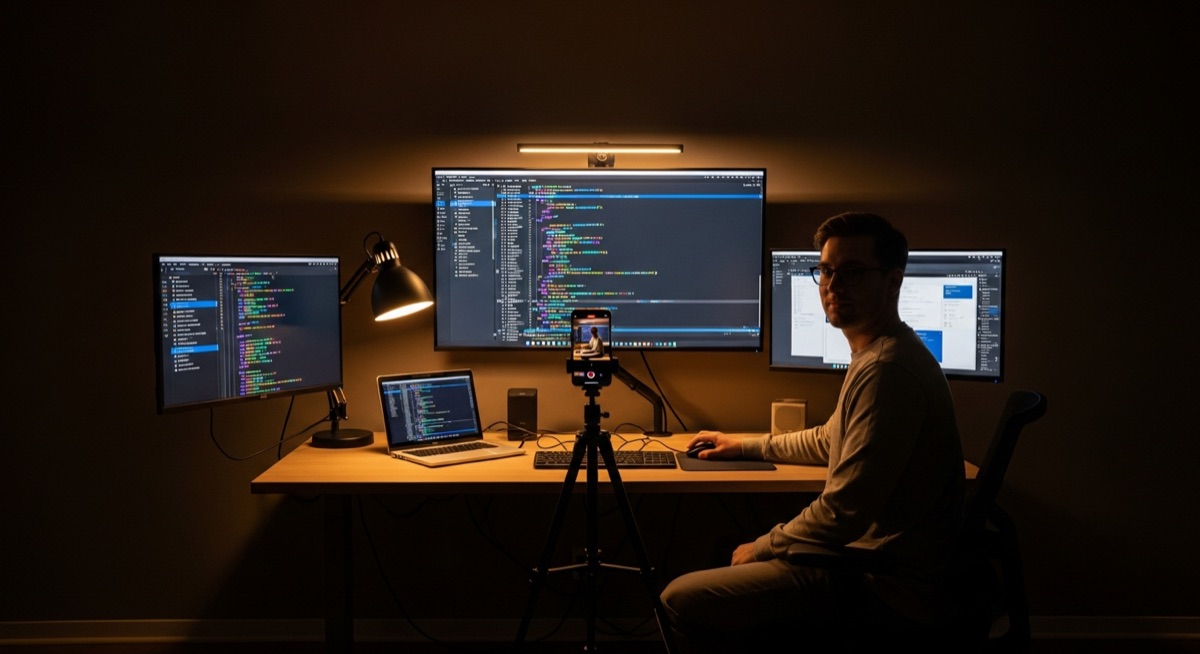
You recorded the course. Two hours of expertise, screen demos, live coding, step-by-step explanations. Now it sits as a single long video that nobody watches end to end. Learners want specific skills, not marathon sessions. Course platforms reward shorter modules. Social media algorithms favor clips under two minutes.
Bitcut takes your existing course recordings and segments them into focused micro-lessons by topic. Each lesson gets subtitles in multiple languages, clean audio, and a title card labeling the skill. You go from one long recording to a library of searchable, shareable learning content — without re-recording anything.
Course Editor: AI Segmentation and Multi-Language Subtitles
Generate Shorts
AI transcribes your entire recording, identifies topic transitions, and segments it into standalone micro-lessons. A 2-hour tutorial becomes 12–18 focused clips, each covering a single concept or skill. Every segment gets a title and a quality score.
Guide: Generate ShortsTopic Search
Need the segment where you explain API authentication or the part about flexbox? Type a search prompt and Bitcut finds that exact section in the transcript. Pull out specific skill explanations from hours of recorded material without watching a single minute.
Guide: Topic SearchSilence Removal
Course recordings have thinking pauses, typing delays, and dead air between demonstrations. Silence Removal trims them automatically, making each micro-lesson tighter without cutting any instructional content.
Guide: Silence RemovalTitle Cards
Add step numbers, skill labels, or module titles at the start of each lesson. Built-in styles let you create a consistent look across your course library. Title cards are burned into the export — learners see the topic before the instruction begins.
Guide: Title CardsMulti-Language Subtitles
Subtitles are generated in your source language, then translated to additional languages with word-level timing preserved. Reach learners worldwide without re-recording in each language. Each translation becomes a separate export with burned-in subtitles.
Guide: Subtitle StylesVoice Enhancement
Home offices have echo. Conference rooms have HVAC noise. Voice Enhancement applies noise gating, EQ, and compression so your instruction sounds clear and professional in every clip, regardless of where it was originally recorded.
Guide: Voice Enhancement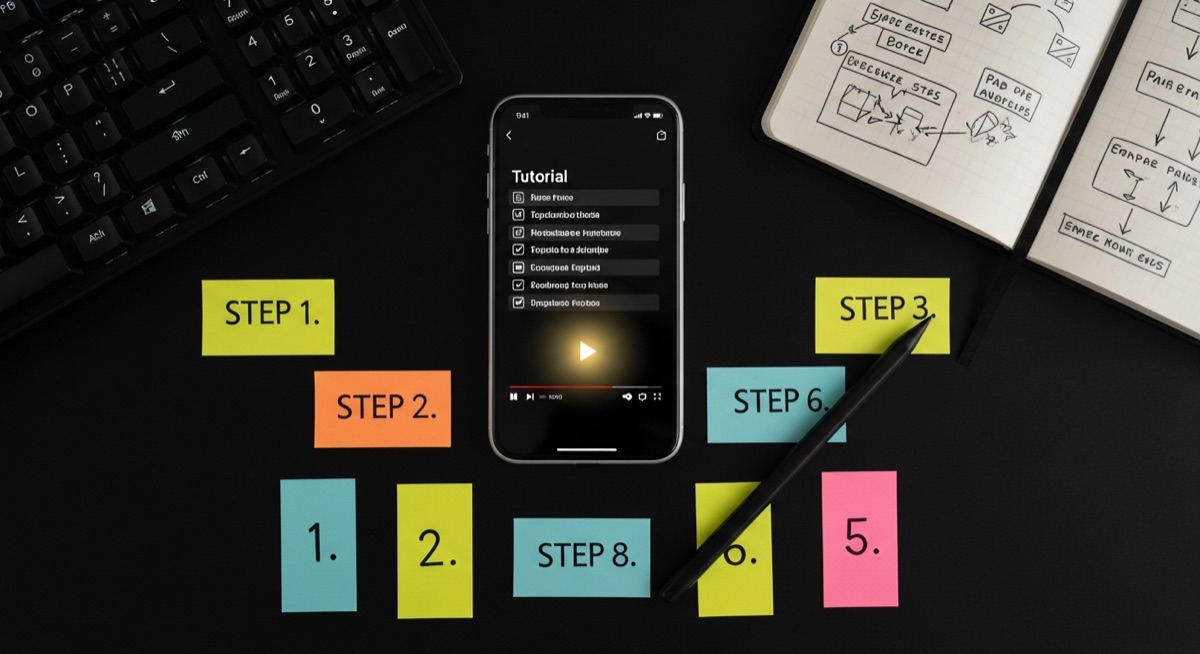
Step by Step: Course Recording to Micro-Lessons
Import the course recording
Open Bitcut, create a new project, and import your video from the camera roll, Files, or an external drive. Screen recordings, webcam footage, and live workshop captures all work. No file conversion needed.
Generate Shorts by topic
Tap Generate Shorts and Bitcut transcribes the full recording, then identifies topic boundaries. Each segment becomes its own project with subtitles already attached. Use Topic Search to pull out specific skills — type "explain recursion" or "database normalization" and get exactly that section.
Remove silences and clean audio
Open each micro-lesson and run Silence Removal to cut pauses and dead air. Apply Voice Enhancement to clean up room echo, microphone noise, or inconsistent levels. Both are one-tap operations.
Add title cards and multi-language subtitles
Add a title card to each lesson with the step number and skill label — "Step 3: Setting Up Routes" or "Lesson 7: CSS Grid Layout". Enable additional languages in project settings to generate translated subtitles for global learners.
Export and distribute
Export each micro-lesson to your camera roll. Upload to Udemy, Skillshare, or your own platform for the full course. Post selected clips to YouTube Shorts, TikTok, or LinkedIn as marketing teasers. Use AI Descriptions to generate course copy and hashtags for each clip.
Per 2-Hour Course: 12-18 Micro-Lessons with Subtitles
From a 2-hour course recording, expect 12–18 micro-lessons between 45 seconds and 3 minutes. Each lesson covers one skill or concept and includes:
- Burned-in subtitles so learners can follow along in silent environments — commute, office, library
- Multi-language subtitle tracks for international reach without re-recording
- Clean audio with room noise and echo removed
- A title card identifying the skill, step number, or module name
- Standalone context — each lesson makes sense without watching the full course
Course Creators, Coding Bootcamps and YouTube Educators
- Online course creators: Break long modules on Udemy, Skillshare, or Teachable into micro-lessons that match how learners actually consume content.
- Coding bootcamps: Segment live coding sessions into per-topic lessons. Students revisit the exact skill they need instead of scrubbing through hours of footage.
- Corporate L&D teams: Convert internal training recordings into a searchable library of micro-learning clips. Distribute via LMS or internal channels.
- YouTube educators: Repurpose long-form tutorials into short-form clips for TikTok and Shorts. Each clip is a self-contained skill demo that drives traffic back to the full course.
- Language teachers: Record a grammar lesson once, then generate subtitles in the target language and the students native language simultaneously.
Why Bitcut for Skills Training
Frequently Asked Questions
Can Bitcut find a specific topic inside a long course recording?
Yes. After the initial Generate Shorts pass, tap Find More and type a search prompt such as "explain dependency injection" or "CSS grid layout". Bitcut scans the transcript and extracts the matching section as a standalone clip with subtitles already attached.
How many languages can subtitles be translated into?
On the Creator plan, you can add multiple target languages per project. Bitcut generates subtitles in the source language first, then translates to each target language with word-level timing preserved. Every language gets its own subtitle track burned into a separate export.
Does it work with screen recordings and coding tutorials?
Bitcut works with any video in your camera roll or Files app, including screen recordings from Xcode, VS Code walkthroughs, or browser-based demos. The AI segments by what the instructor is saying, not what is on screen, so it handles screencasts well.
Can I control where each lesson starts and ends?
Generate Shorts proposes segments based on the transcript, but every segment opens as its own project. You can adjust the start and end points, trim further, or merge adjacent segments. The AI gives you a strong first pass that you refine as needed.
What export formats work for course platforms like Udemy or Skillshare?
Bitcut exports standard MP4 files (H.264 or HEVC) that every major platform accepts. For Udemy or Skillshare, export in the original aspect ratio. For social media marketing clips, export in 9:16 vertical with Face Tracking enabled to reframe to the speaker.